User Guide.
Welcome to Memoria
Memoria is a smart, private monitor for the home. Place a sensor in any room, tell it what to keep an eye on, and it lets you know the moment something matters.
Set it up your way. Put the sensor in whichever room you choose, and it learns what you care about and alerts you when it happens.
Catch what matters. A possible fall, a missed medication, a wander out the front door. You decide what it watches, and you can turn any of it off at any time.
First, the two apps
Memoria uses two apps on two phones. Mixing them up is the most common snag, so throughout this guide a coloured tag tells you which app each screen belongs to.

The app you use to watch, get alerts, and manage everything, or use the web dashboard at dashboard.memoria-health.com.

Runs on a spare phone that stays in the room and does the watching. Set it up once, mount it, plug it in, and leave it.
Before you begin
- A Wi-Fi connection
- At least one Memoria Sensor, a spare phone that stays in the room
- A personal phone with Memoria Care, or a laptop at dashboard.memoria-health.com
Memoria is a wellness device, not a medical device, and cannot guarantee detection with 100% accuracy. It is not a substitute for in-person care. See our Terms and Privacy Policy.
You decide what's watched and who can see it. Video stays within your account, and a sensor only notices what's within its field of view.
Install the app Takes ≈ 2 min
Memoria Care is free on the App Store. Install it once on your own phone — it's the app you'll use to watch, get alerts, and manage everything.
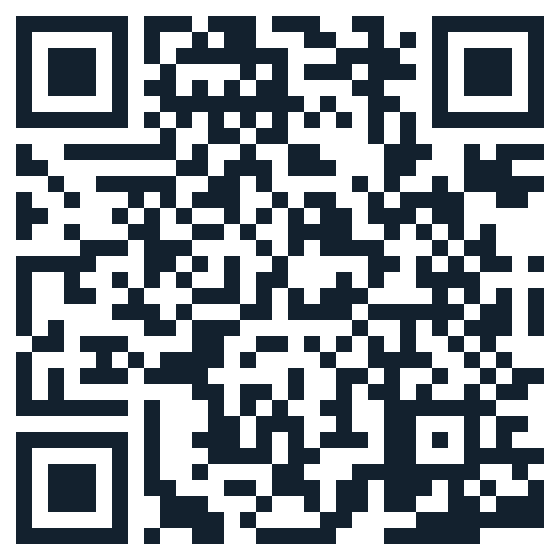
Tap the link, or scan the code with your phone's camera.
- Tap the link above — or open the Camera app and point it at the QR code. You can also open the App Store and search for "Memoria Care."
- On the Memoria Care page, tap Get, then confirm with Face ID, Touch ID, or your password.
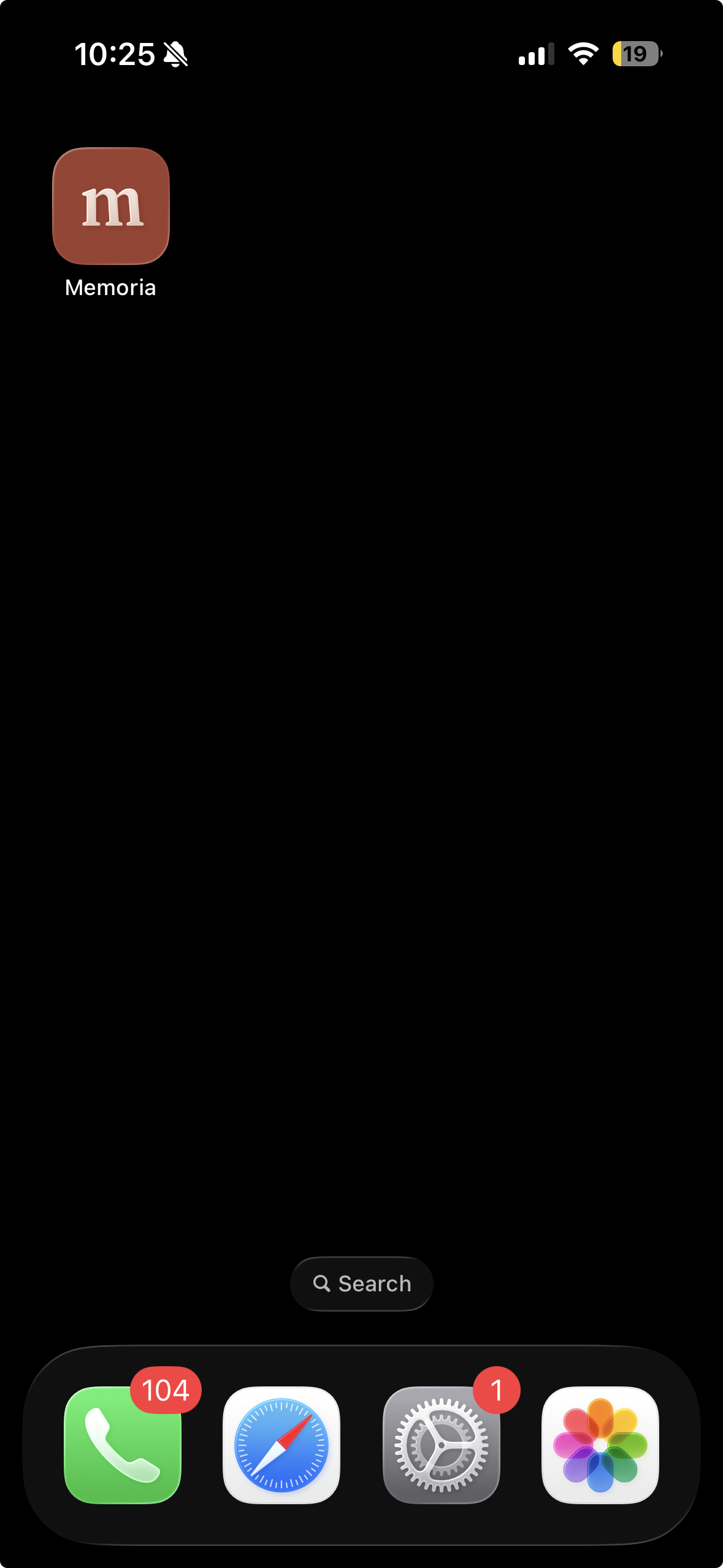
- When it finishes, tap Open — or find Memoria Care on your home screen and open it like any other app.
The phones in your kit come with Memoria Sensor pre-installed — there's nothing to install on those. If you ever set up your own spare phone as a sensor, Memoria Sensor is free on the App Store too.
Set up Memoria Setup time ≈ 10 min
Create your account
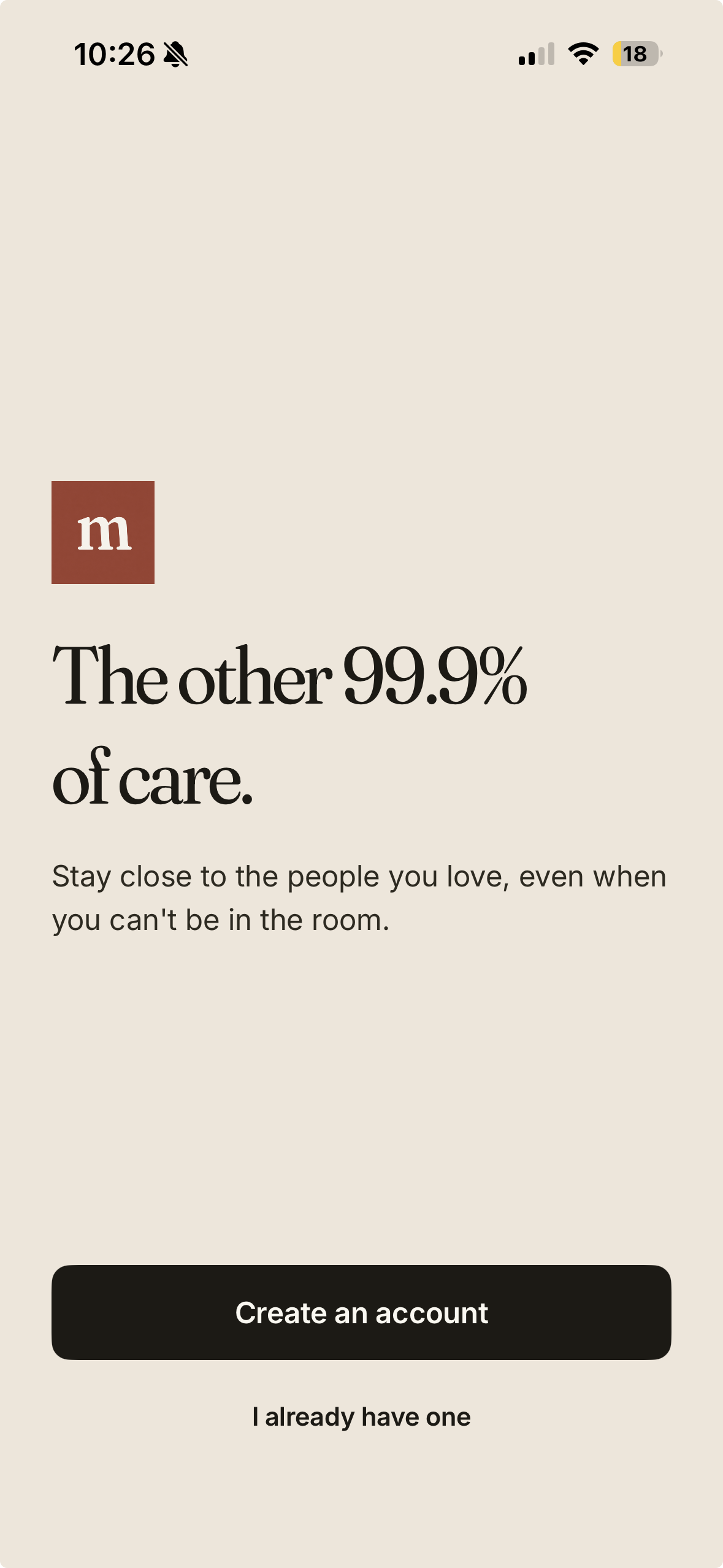
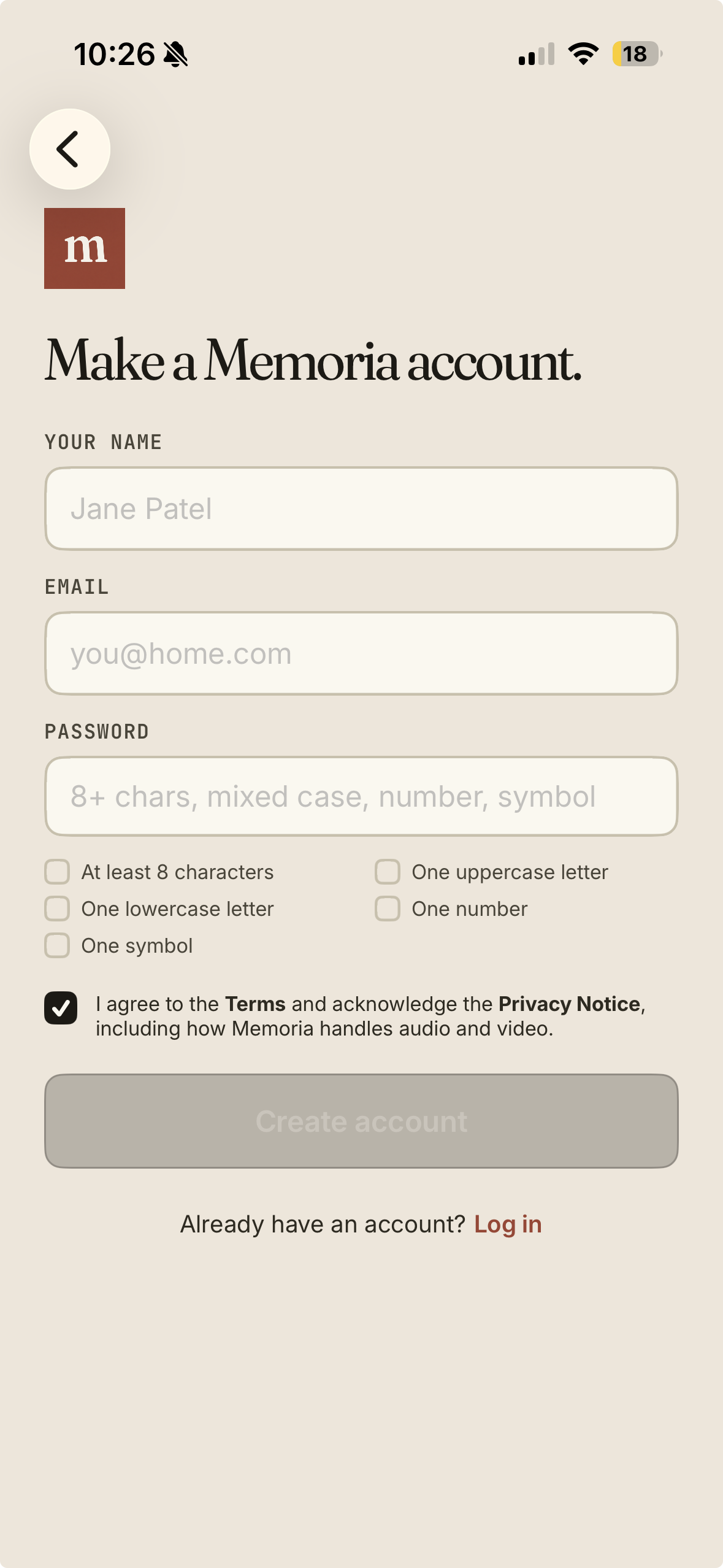
Open Memoria Care on your phone (not Memoria Sensor — that one is for the room phone, later), or go to dashboard.memoria-health.com. Sign up with your email and a password.
Add the person you're caring for
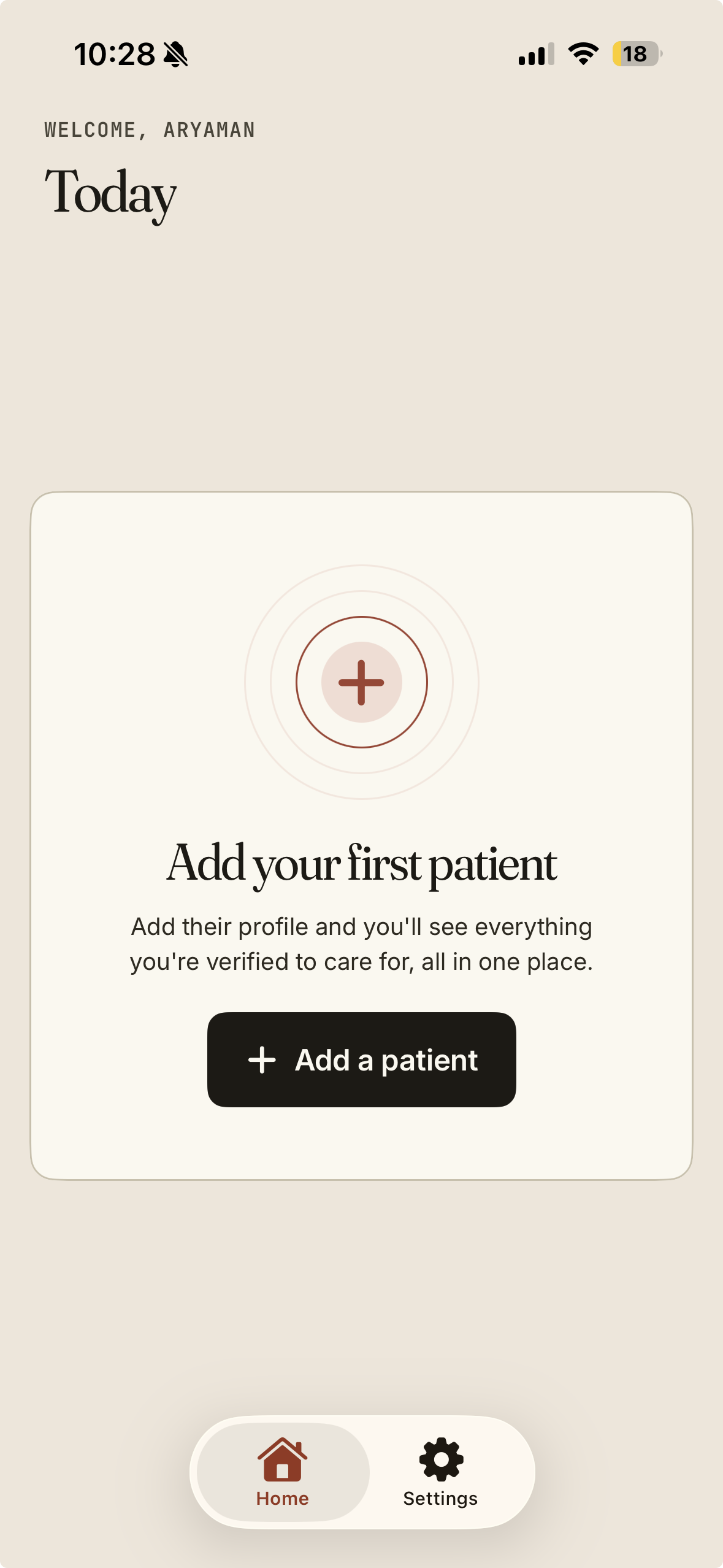
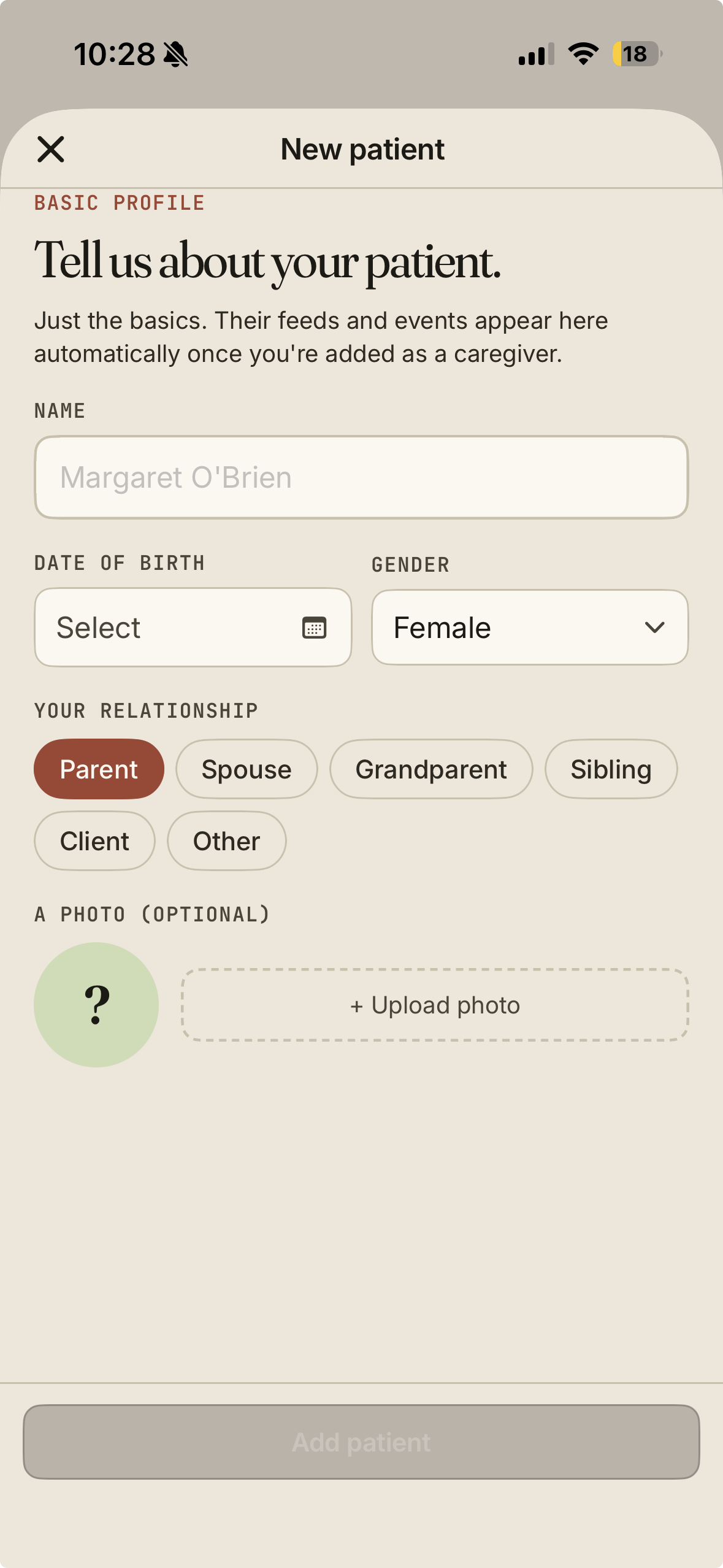
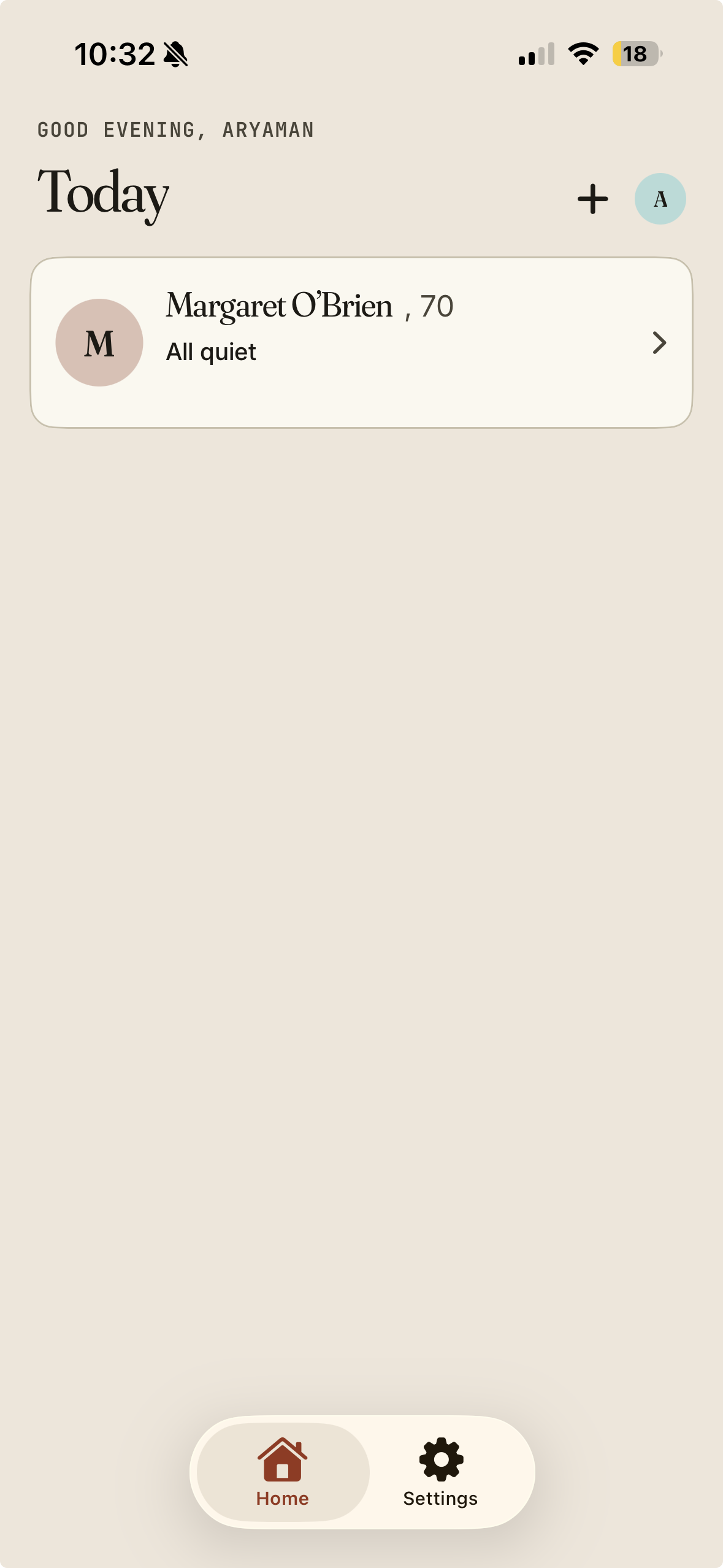
Tap Add a patient and enter their name, plus a few optional details. This is who your cameras and alerts are organised around. You can add more people later.
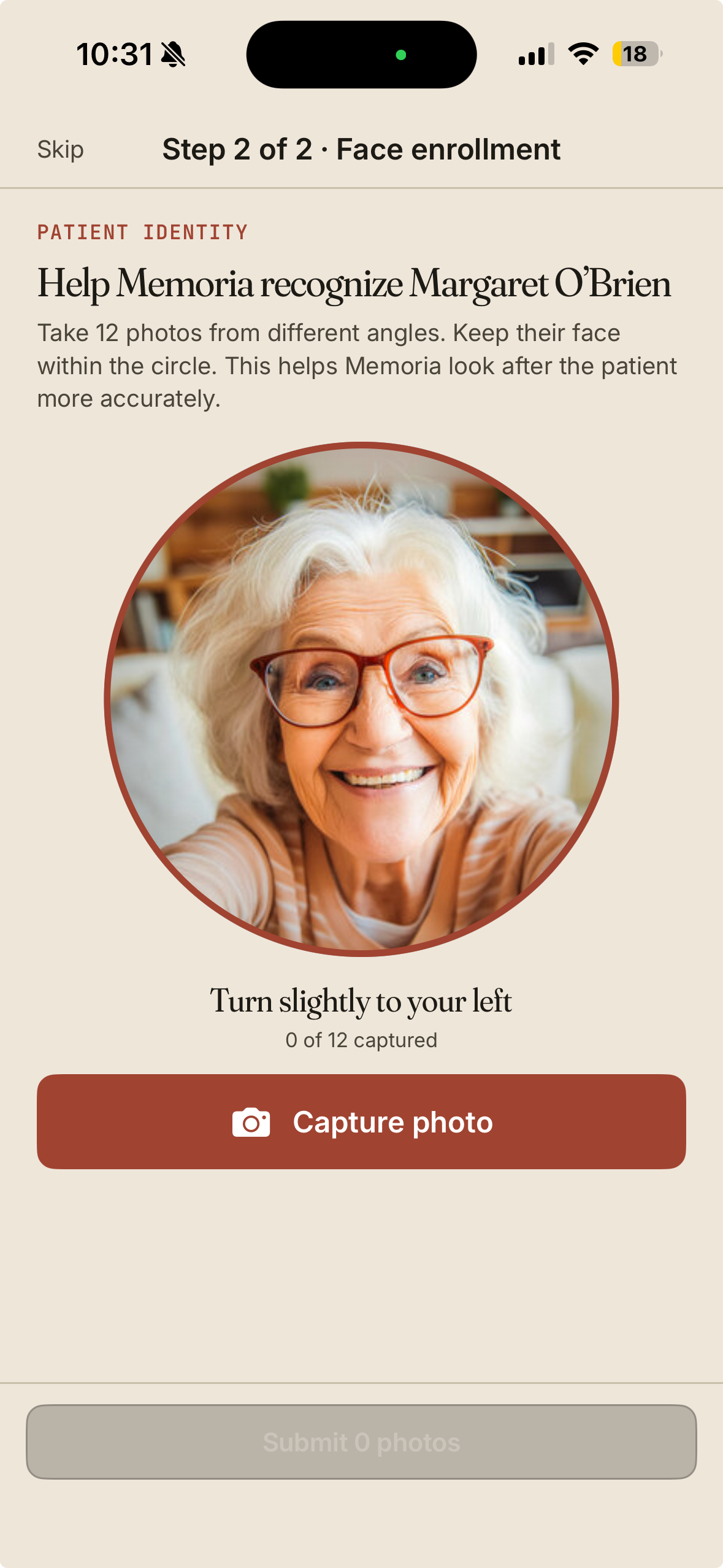
Take 12 photos from different angles to help Memoria recognise the right person. It improves the accuracy of its insights and alerts. You can Skip and finish later from Patient settings.
Set up & pair the camera
Now connect the room phone that does the watching. Generate a code in Memoria Care, then type it into Memoria Sensor.
For how to set up the stand, wall mount, charger and what's in the box, see the Sensor Setup guide.
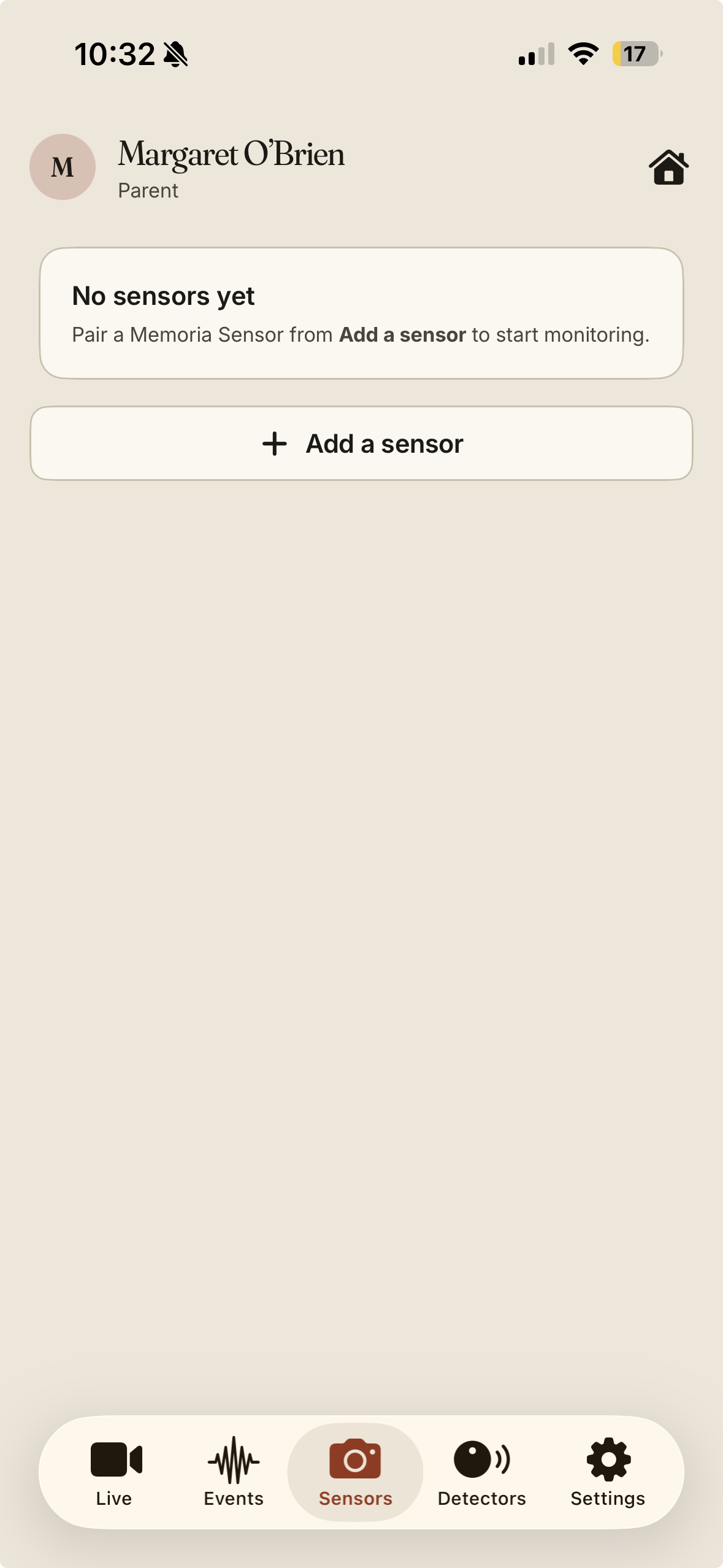
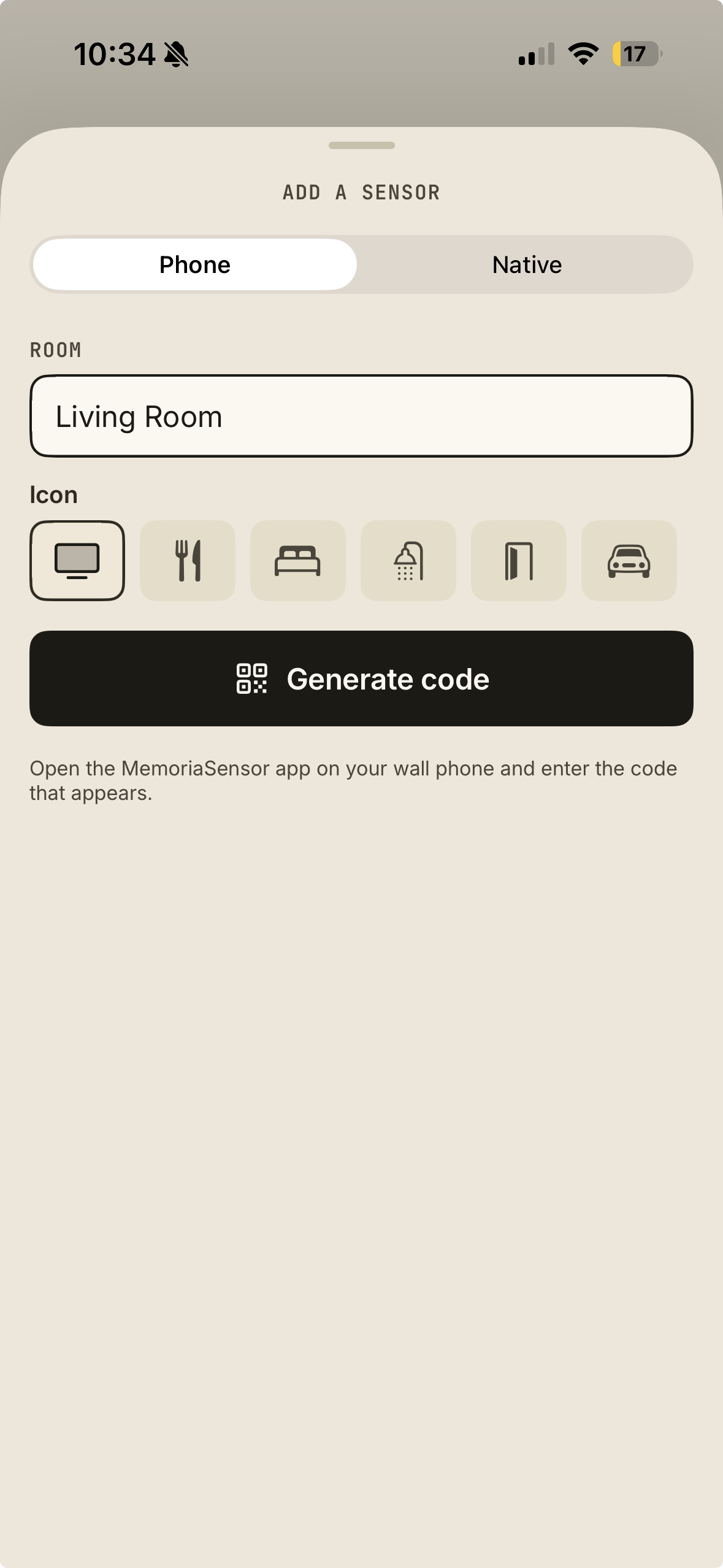
Open the patient → Sensors → Add a sensor. Name the room, pick an icon, then Generate code.
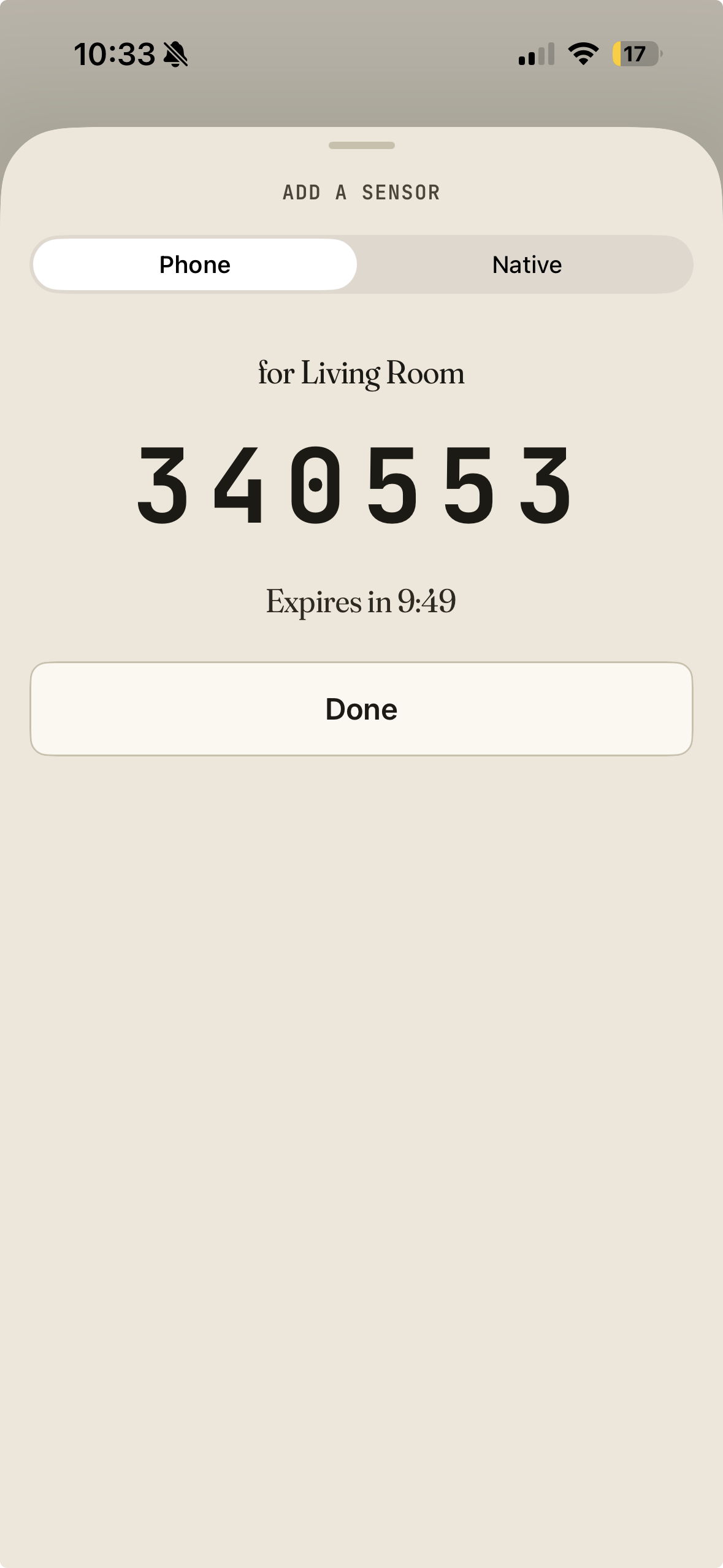
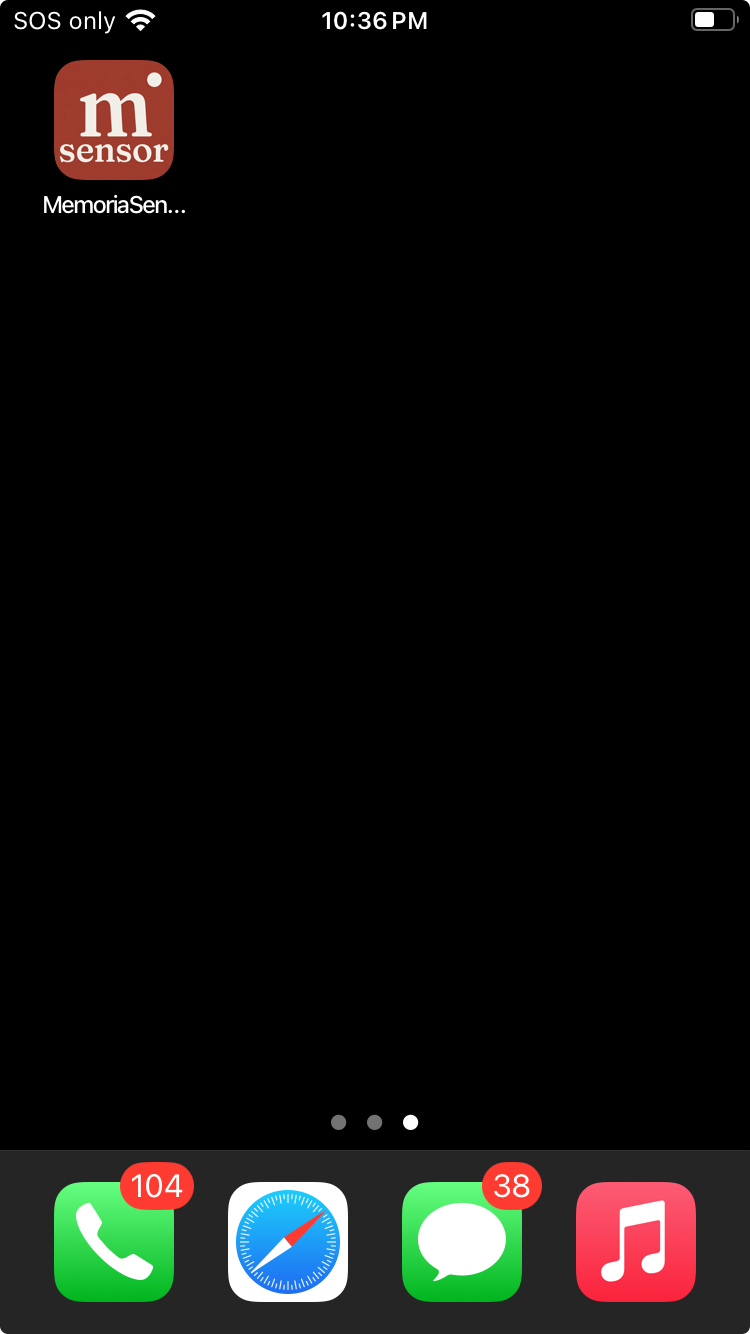
Pick up the second phone, open Memoria Sensor, type the 6-digit code and tap Pair.
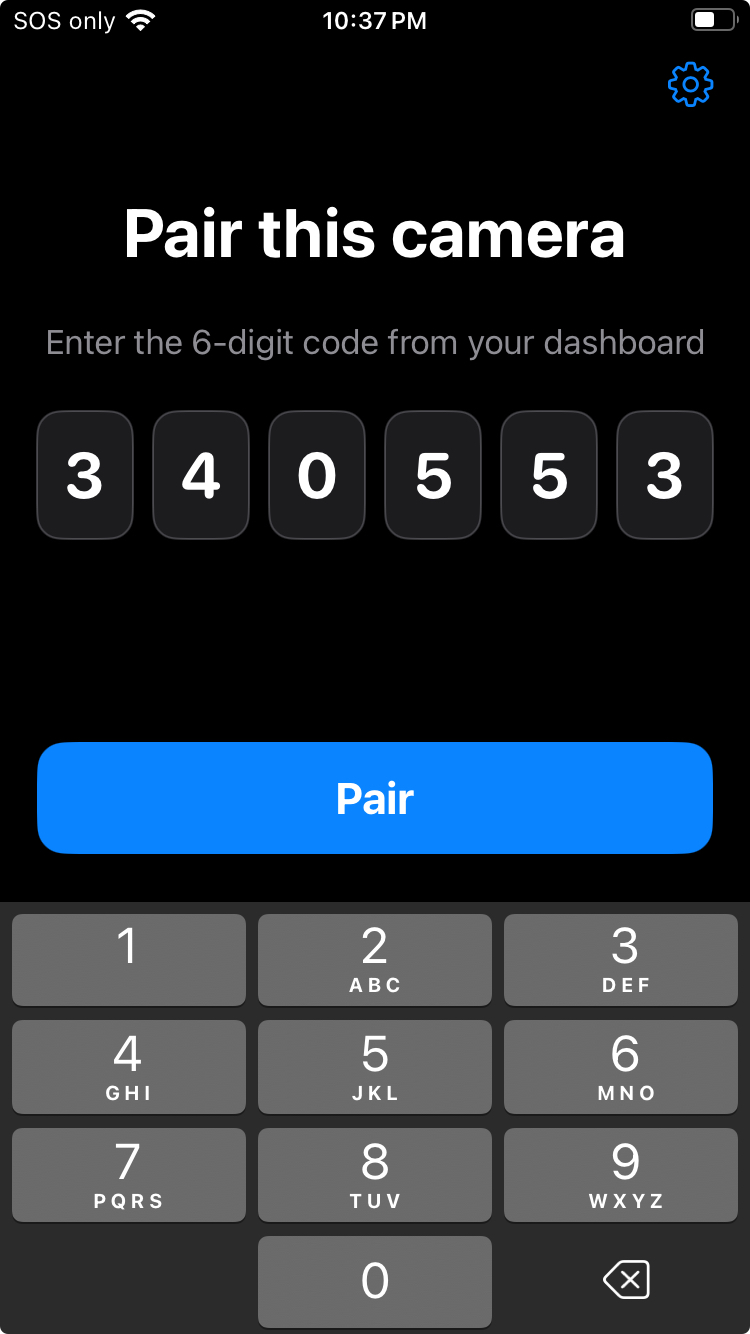
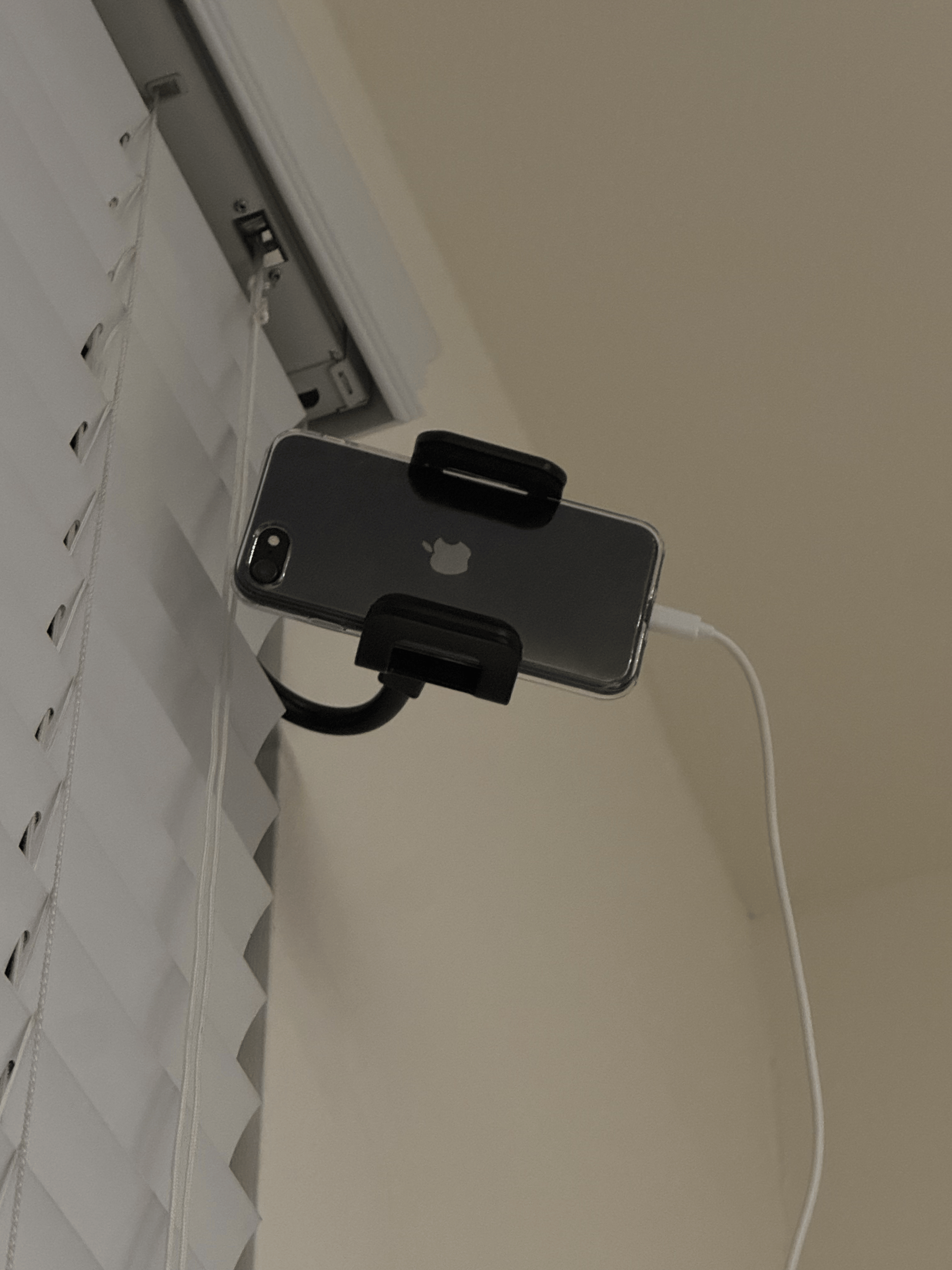
Mount it where it can see the room. A high corner looking down works well. Plug it into power and keep it on Wi-Fi.
Mount it whichever way suits the spot. In the Sensor app, choose Front camera (screen faces the room) or Rear camera (the back faces the room). Both work equally well.
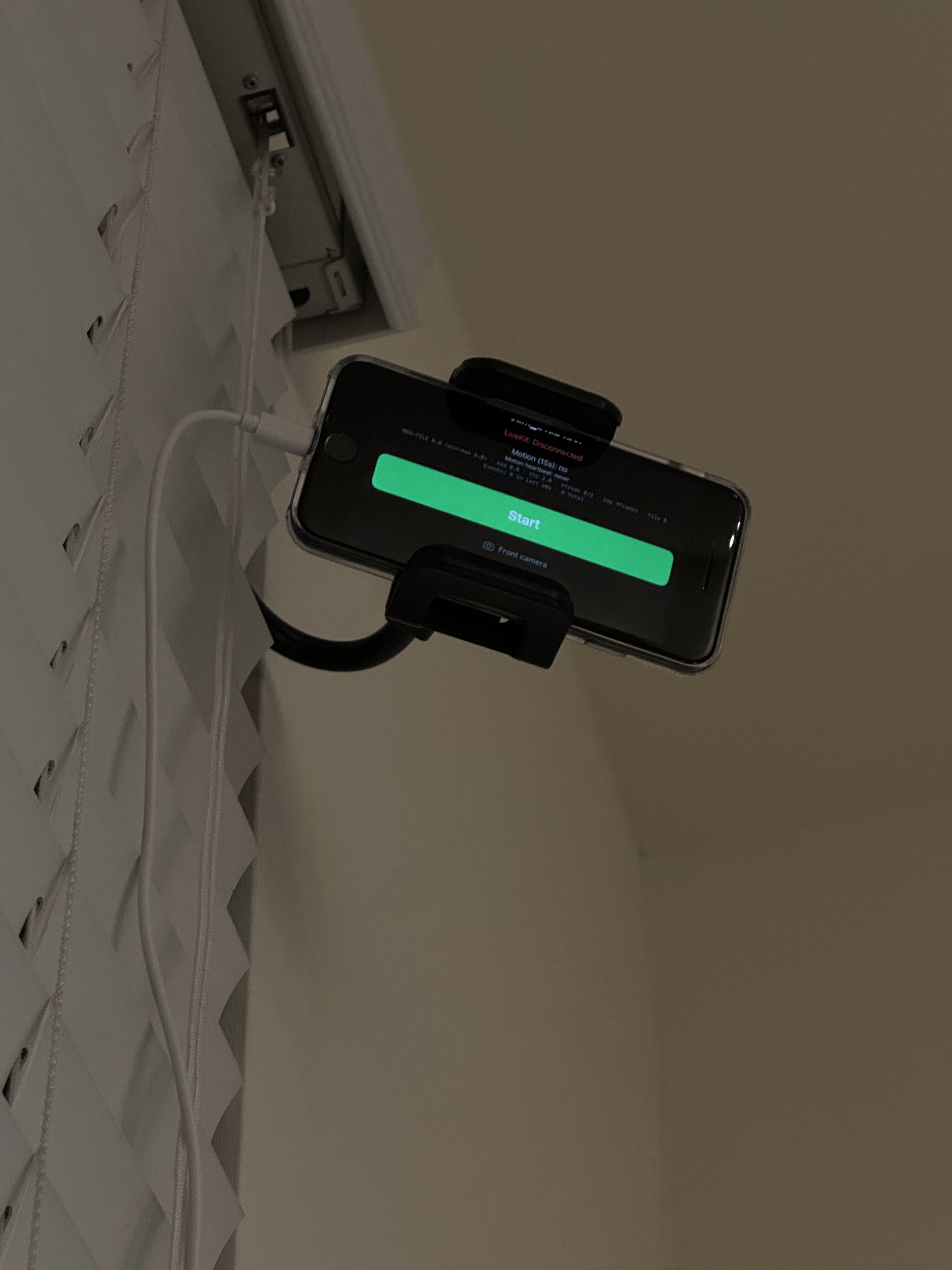
On the room phone, tap the green Start button. The sensor is now live.
Confirm it's working
Back on your phone or computer, open the patient's Live view. You should see video from the room within a few seconds.
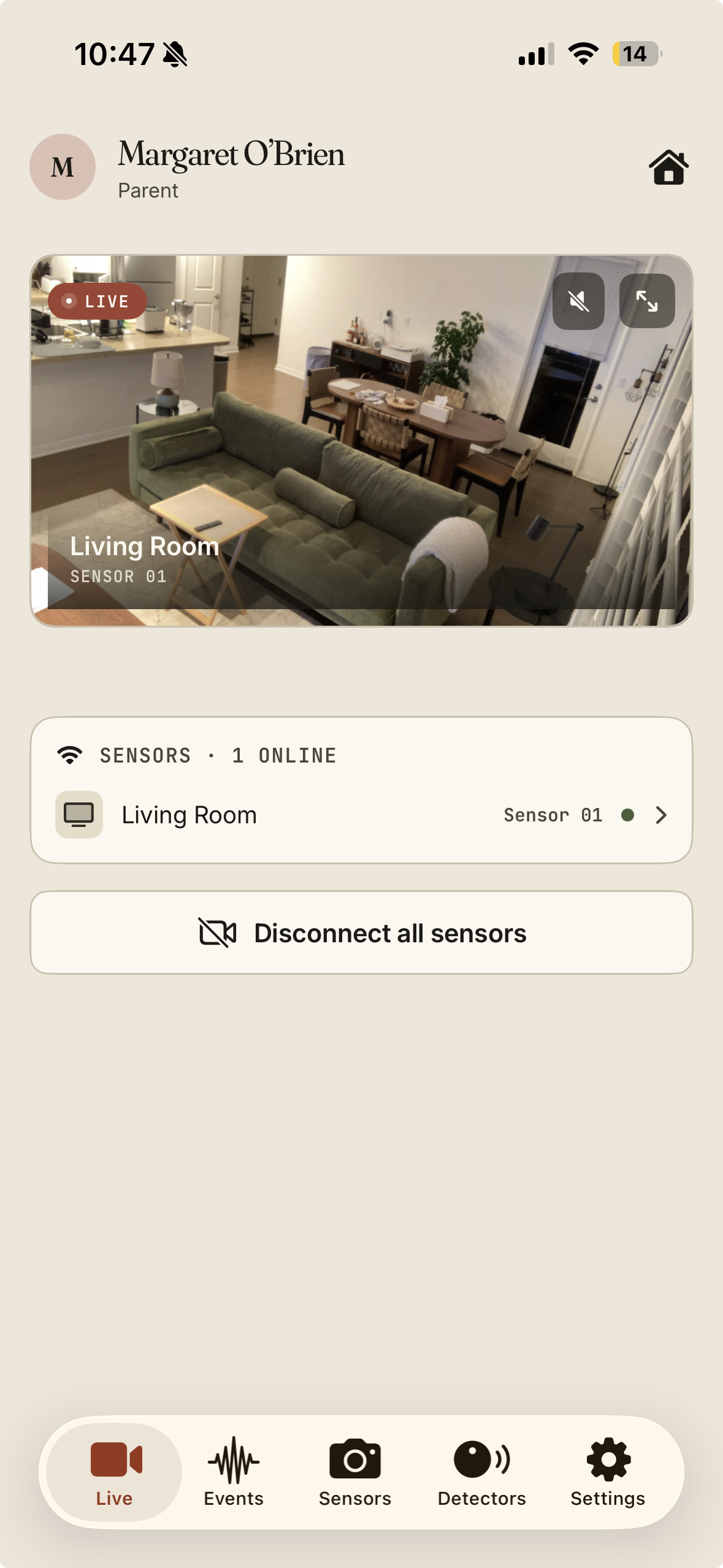
If the tile says "Awaiting pairing" or "Offline," head to Manage & fix things.
Everyday use
Open Memoria Care and pick the person you're checking on. The Live view shows each room as a tile. If a camera is running, you'll see it streaming.
You don't have to keep it open. Insights are generated whether or not you're watching.
- On your phone: a push notification such as "Possible fall, Mom," with a short description.
- By email: turn on email alerts per patient in Patient settings.
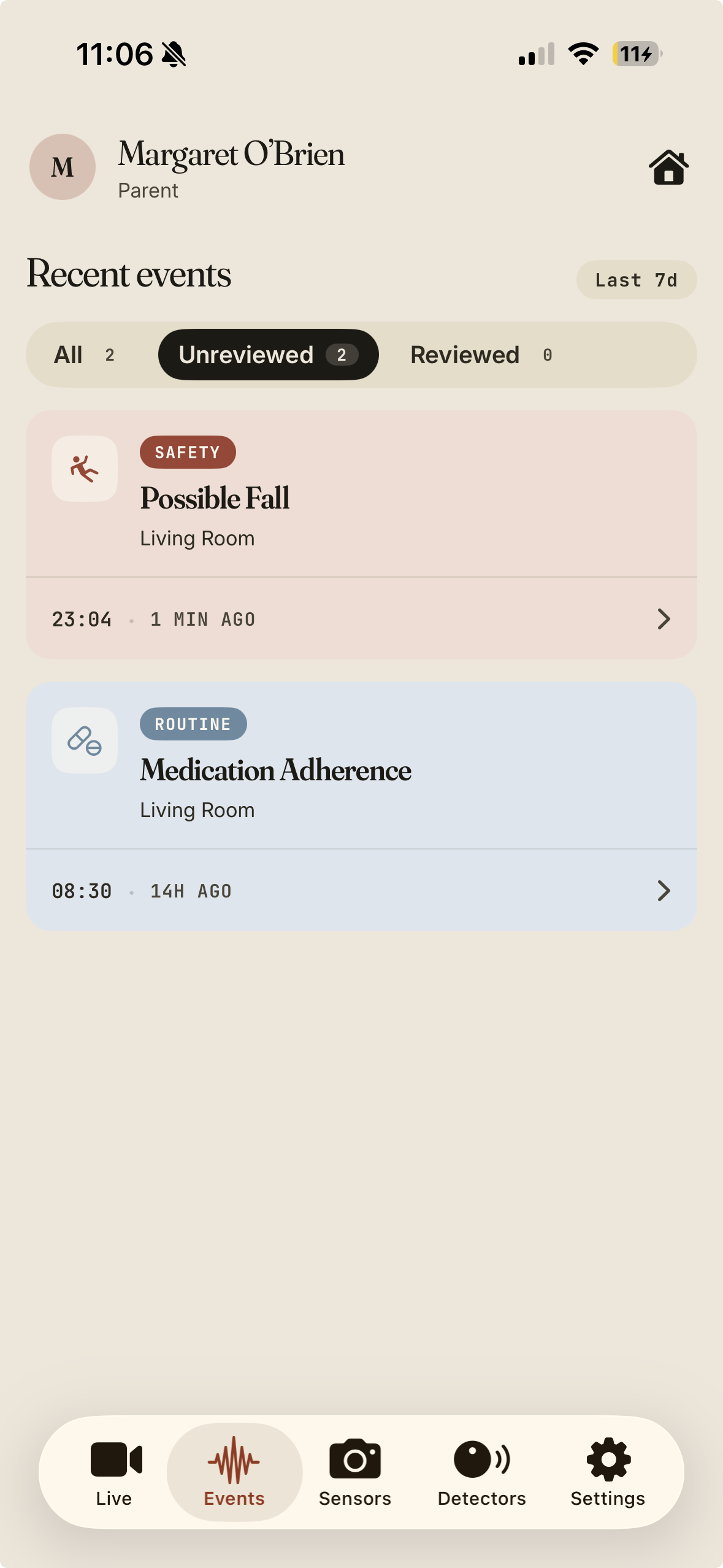
Every alert becomes an event you can open later. The Events tab lists them, colour-coded by category: Safety and Routine — and flags which you haven't reviewed.
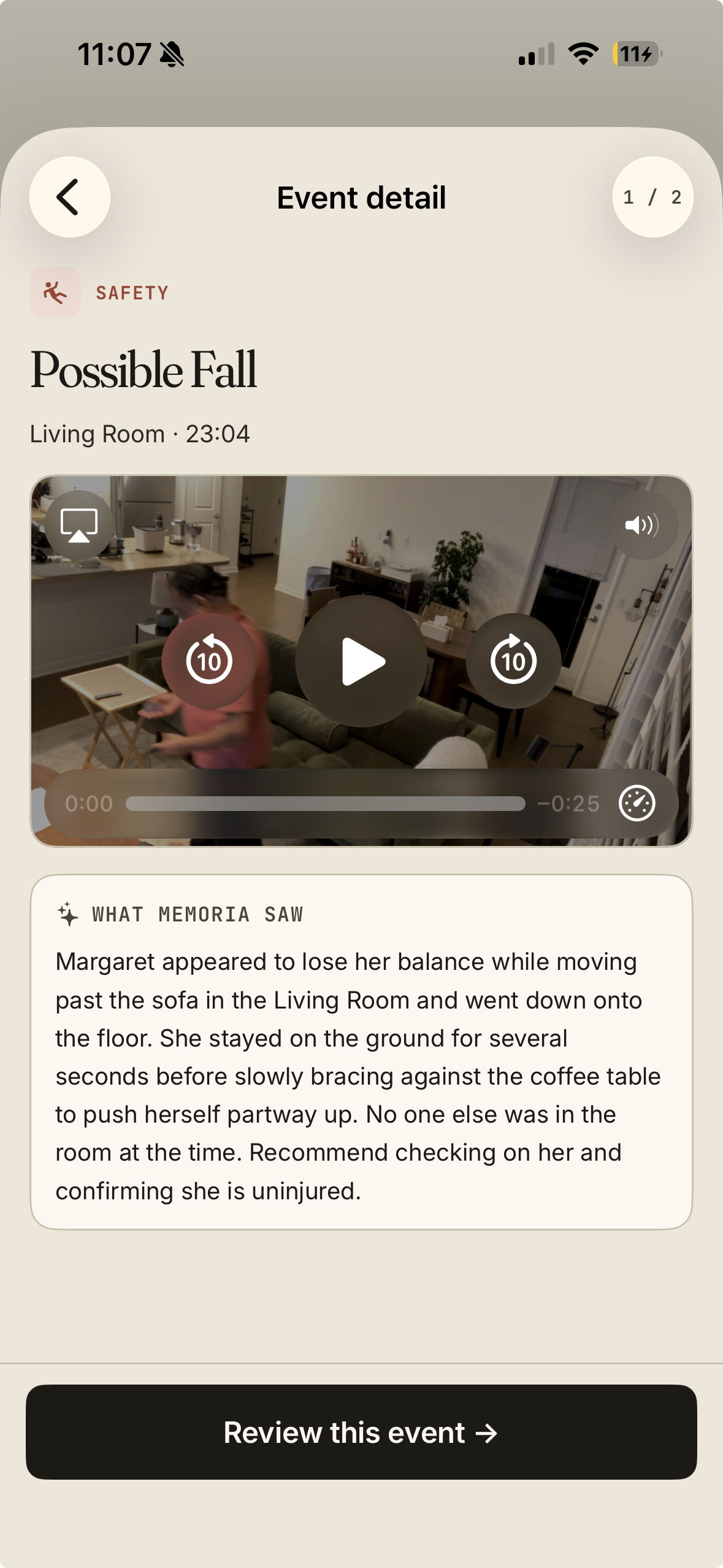
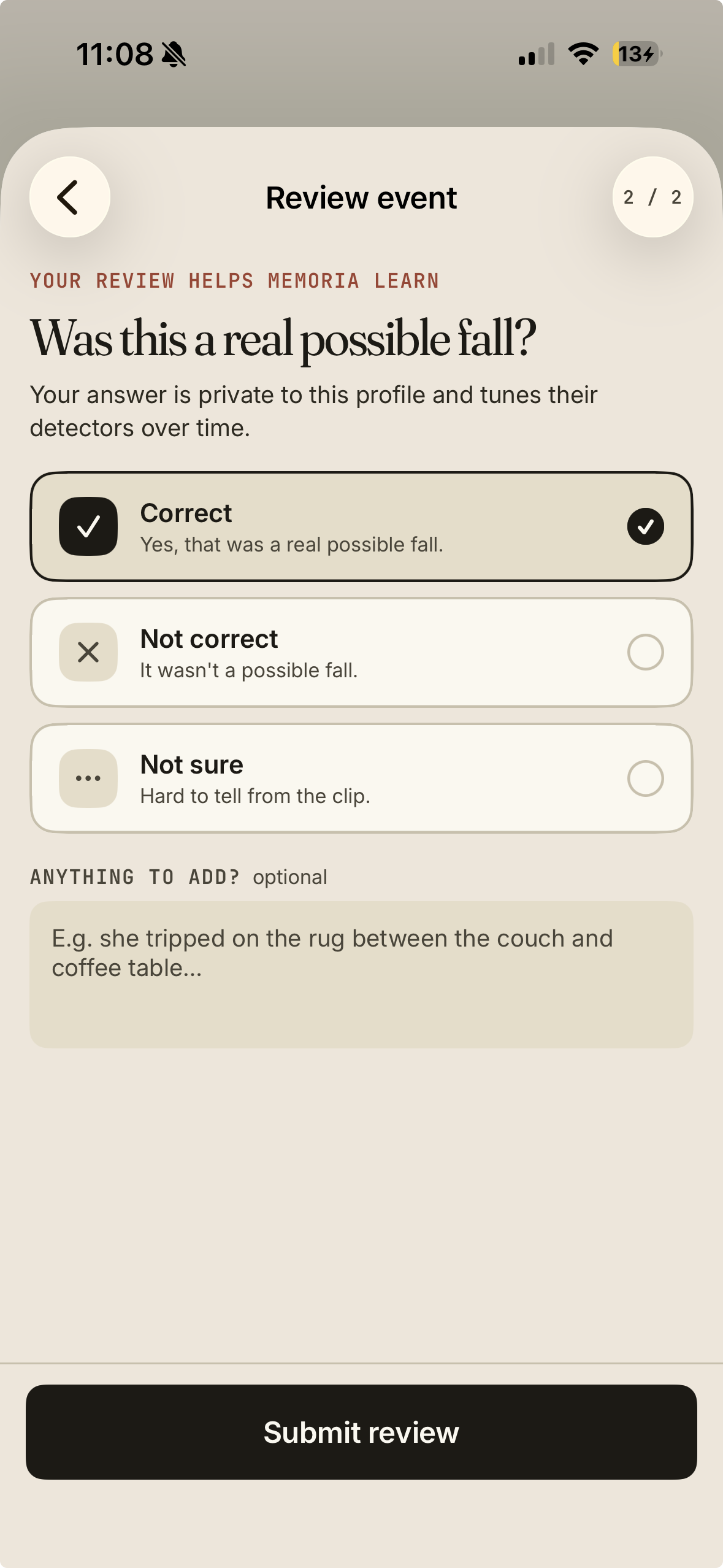
Open one to watch the clip and read "What Memoria saw." Then tap Review and tell it whether it got it right. Your answer is private to that profile and tunes their detectors over time.
Detectors
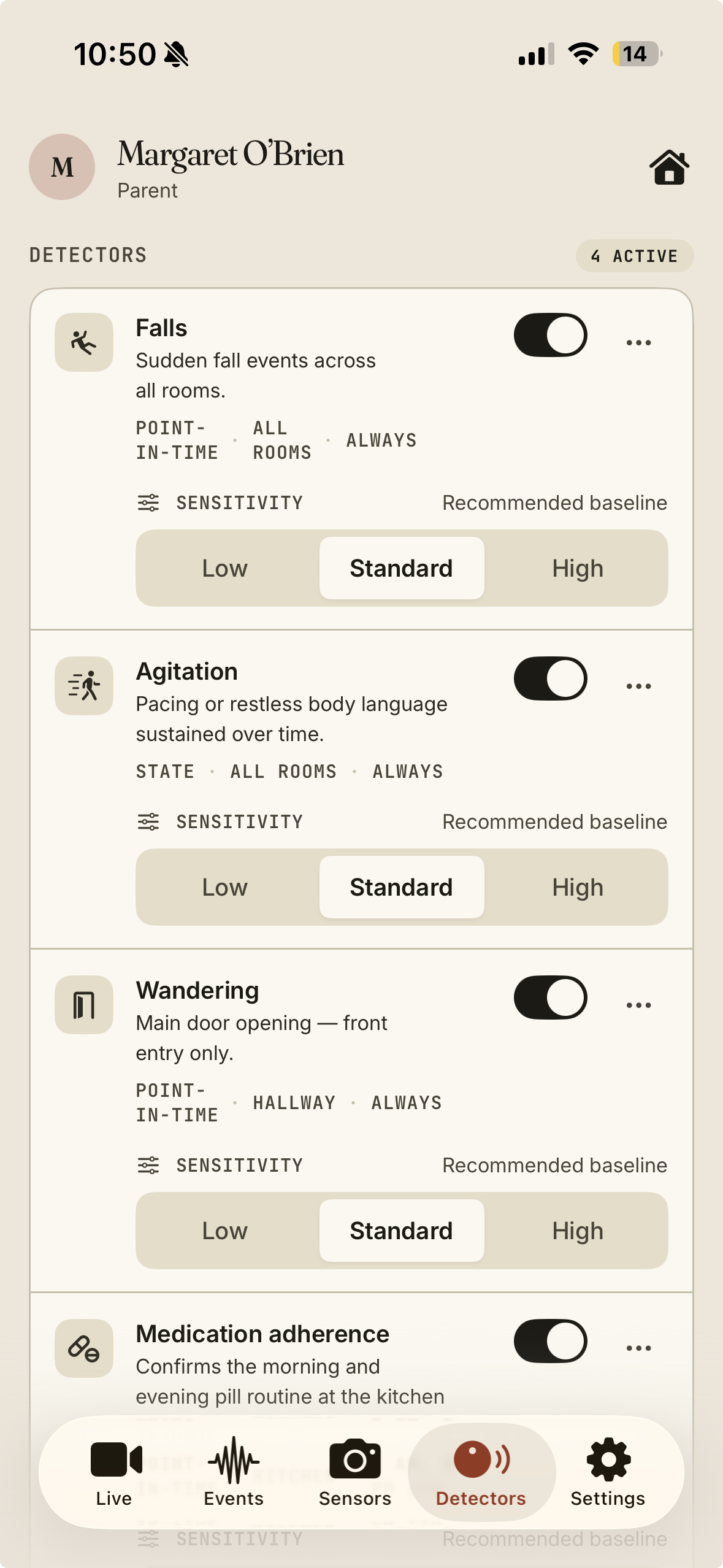
A detector is something you've asked Memoria to watch for. Every patient starts with a few built in, and you can add your own in plain English.
Memoria is not a substitute for in-person care. We cannot guarantee 100% accuracy in any detection, including the built-in ones.
These run automatically on every camera. Turn any off if it's not relevant for a room.
Someone collapsing, slipping, or going down hard.
Leaving through the front door.
Sustained pacing or restless distress.
Taking pills at the kitchen counter.
Fires the moment it's seen
Falls, wandering, a visitor at the door.
"Tell me when X happens."Fires if something didn't happen
Great for routines: medication, meals, getting out of bed, exercise.
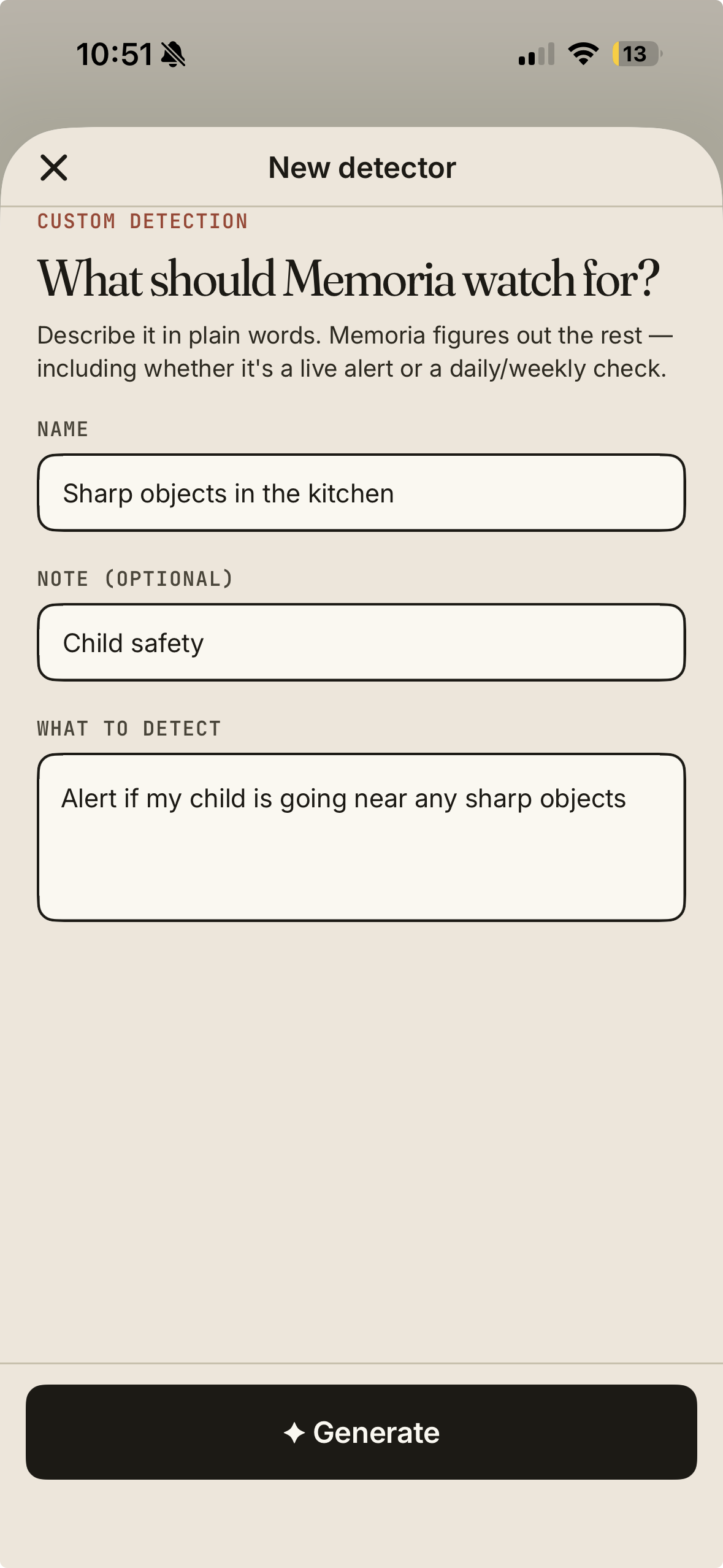
"Tell me if she didn't take her medication between 11am and 5pm."- Open a patient → Detectors → Add a detector.
- Name it and describe what to watch for in plain English.
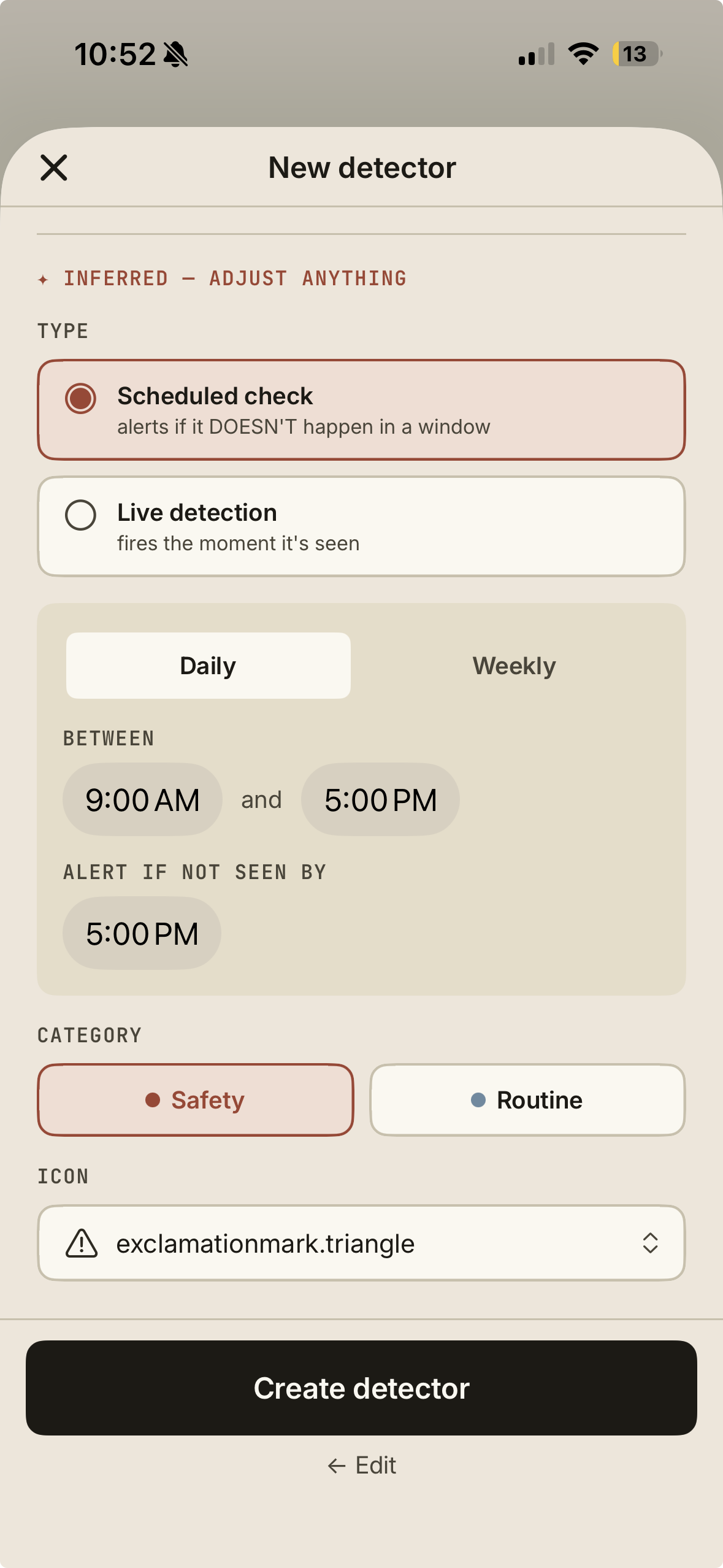
- Tap Generate. Memoria fills in the details: live or scheduled, plus any days and times.
- Review, adjust anything, and tap Create detector.
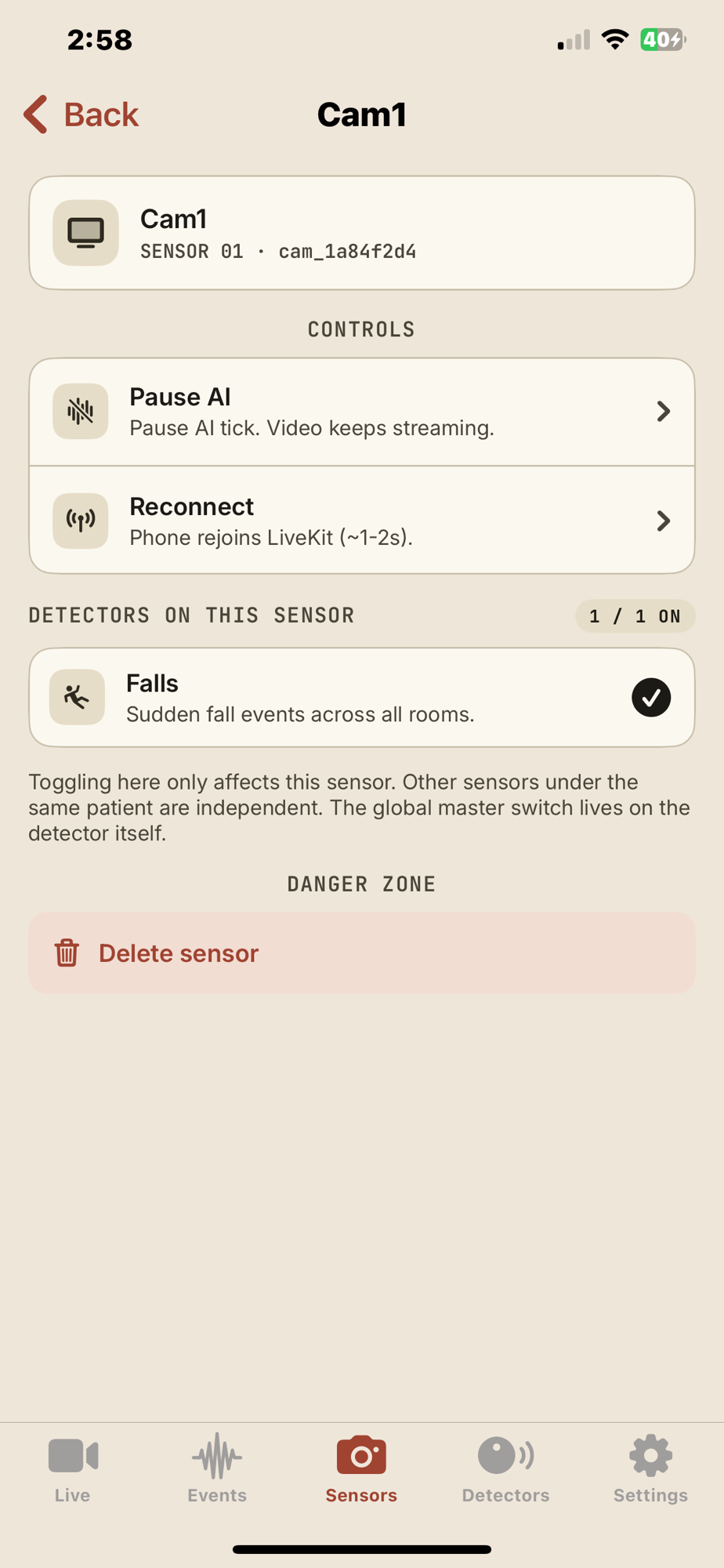
Open a single sensor to switch detectors on or off just for that camera. For example, only running Medication on the kitchen sensor.
Patient settings
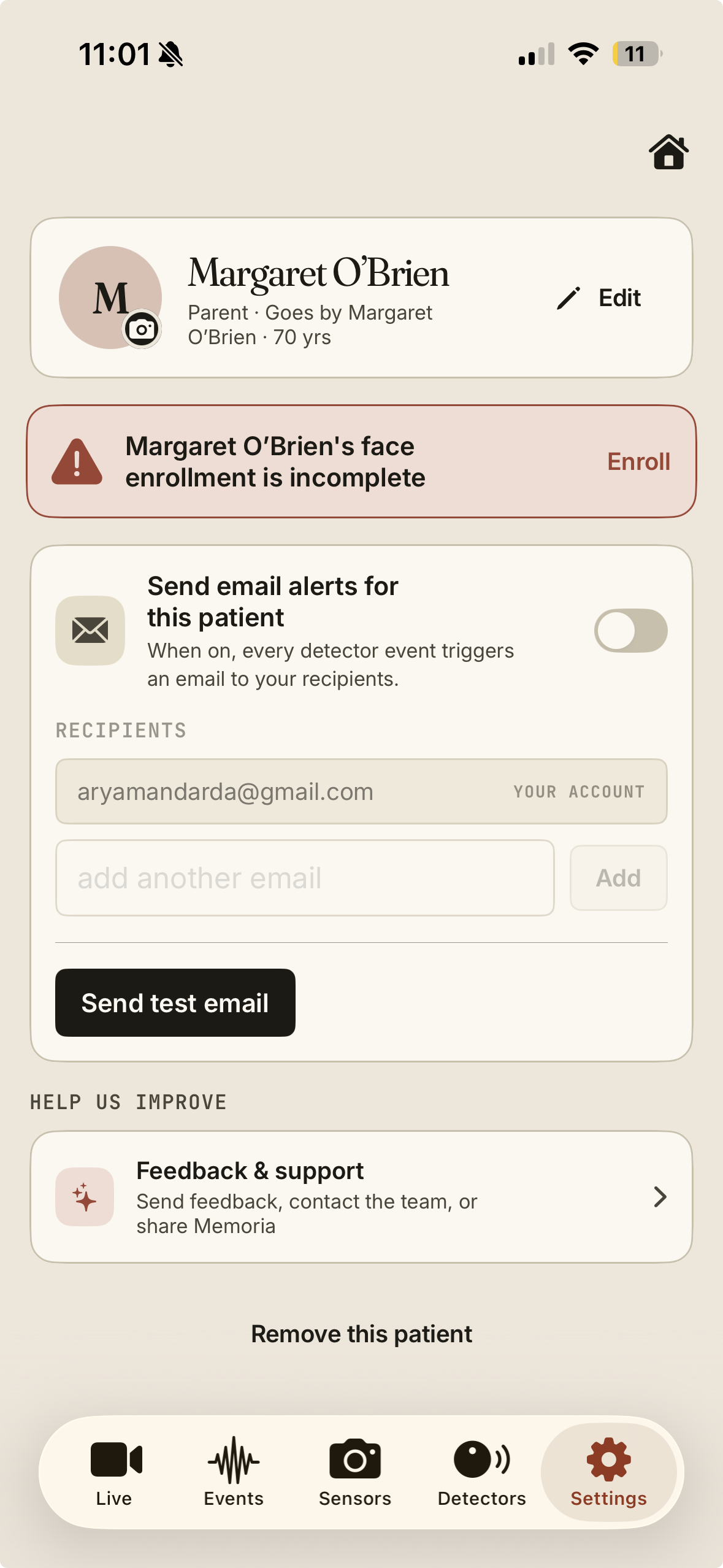
Open a patient → Settings.
Edit the profile. Update name, relationship, age, or photo any time.
Finish face enrollment. If you skipped it, tap Enroll on the banner to add the 12 photos.
Email alerts. Turn on Send email alerts to email your recipients on every event. Add others, and use Send test email to check it works.
Feedback & support. Under Help us improve, tap Feedback & support to send feedback, contact the team, or share Memoria.
Remove a patient. Remove this patient takes them and their sensors off your account.
Manage & fix things
Two "off" switches, from gentlest to strongest, plus what to do if a camera drops offline.
You'll find these together under Controls when you open a single sensor.
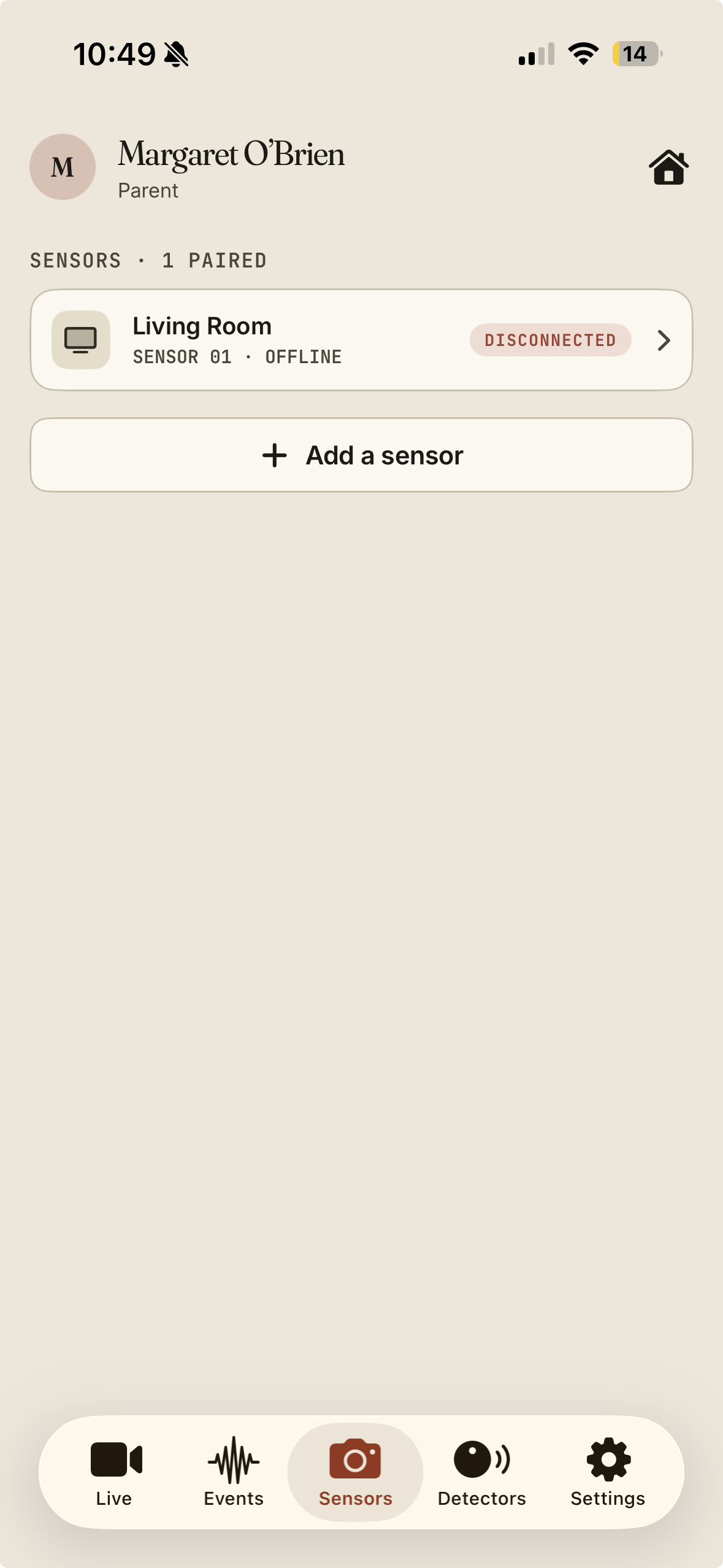
Check the camera phone is on and connected to Wi-Fi, then tap the green Start on it. That usually restores it.
FAQ & support
Does Memoria keep working if I close the app?+
Yes. Insights are generated whether or not you're viewing, as long as you haven't disconnected, hidden, or paused the AI on that sensor.
Is my video private?+
Yes. Video stays within your account, and only the people you invite receive alerts.
Can I use it as a plain baby monitor?+
Absolutely. Keep the live view running and pause detections any time.
What if a camera shows "Offline"?+
Check it's powered on and on Wi-Fi, then see Manage & fix things. Tapping Start on the camera phone usually restores it.
Which app goes on which phone?+
Memoria Care on your phone, for watching and alerts. Memoria Sensor on the spare phone that stays in the room.
Do changes sync between phone and computer?+
Yes. Patients, detectors and settings show up on both automatically.
Need a person?
Sensor Setup.
What's in the box
Each Memoria kit includes everything you need — you don't need anything else. You get two of each, so you can set up two rooms.
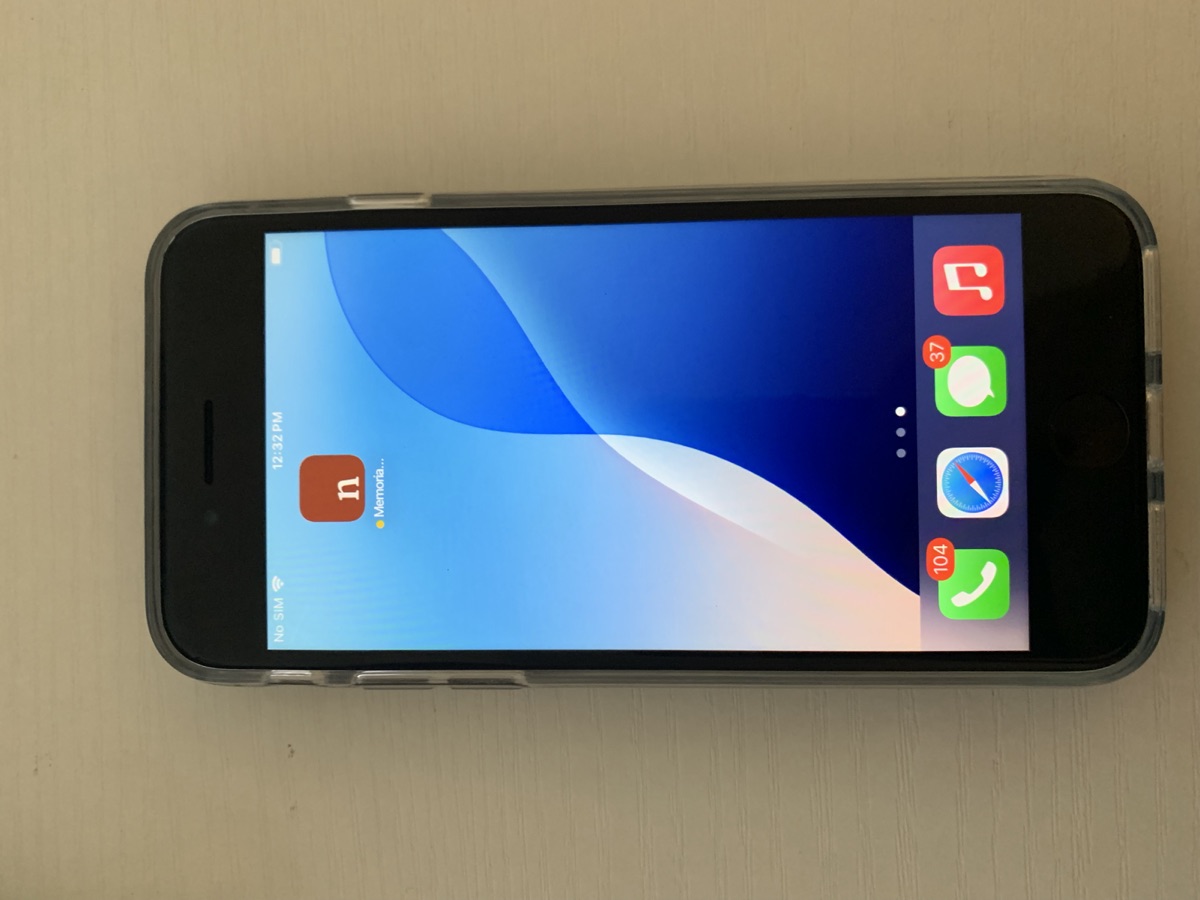
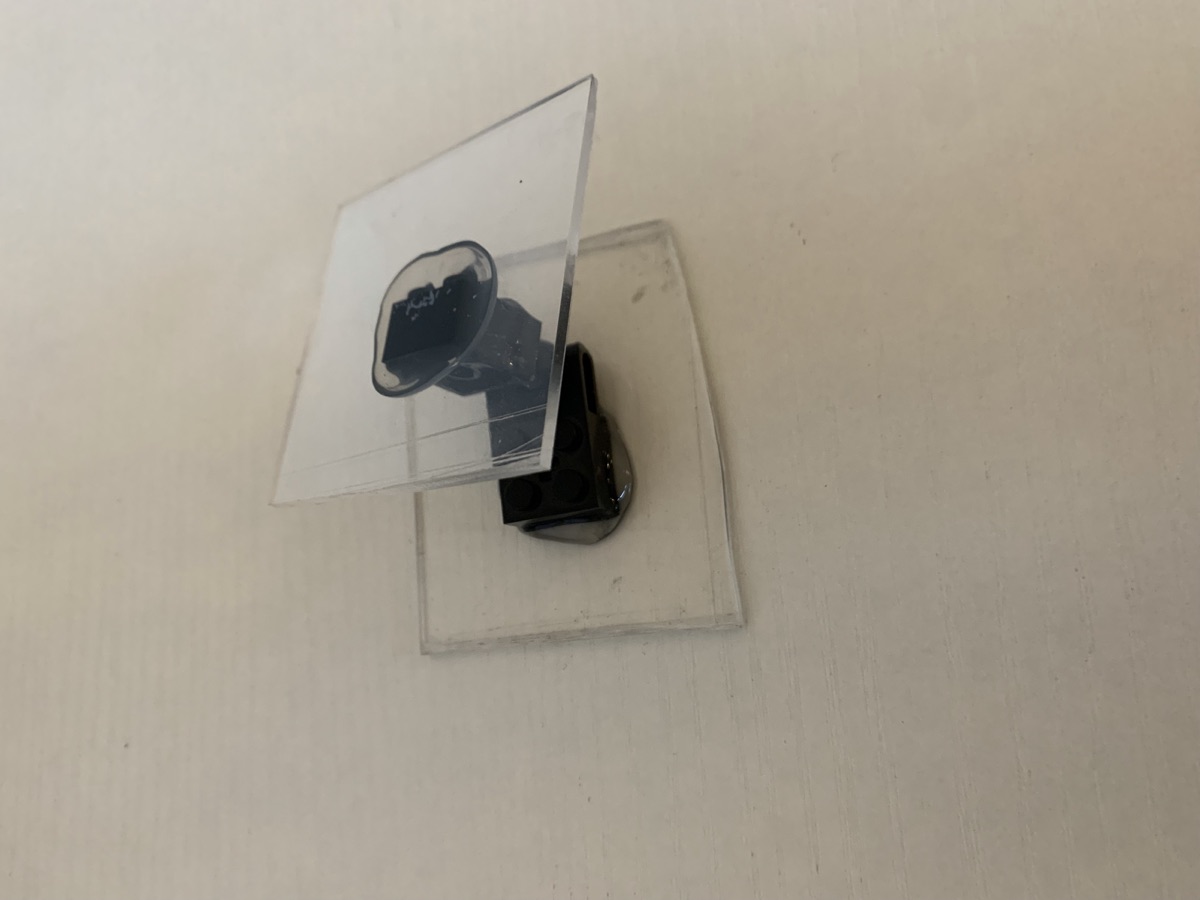
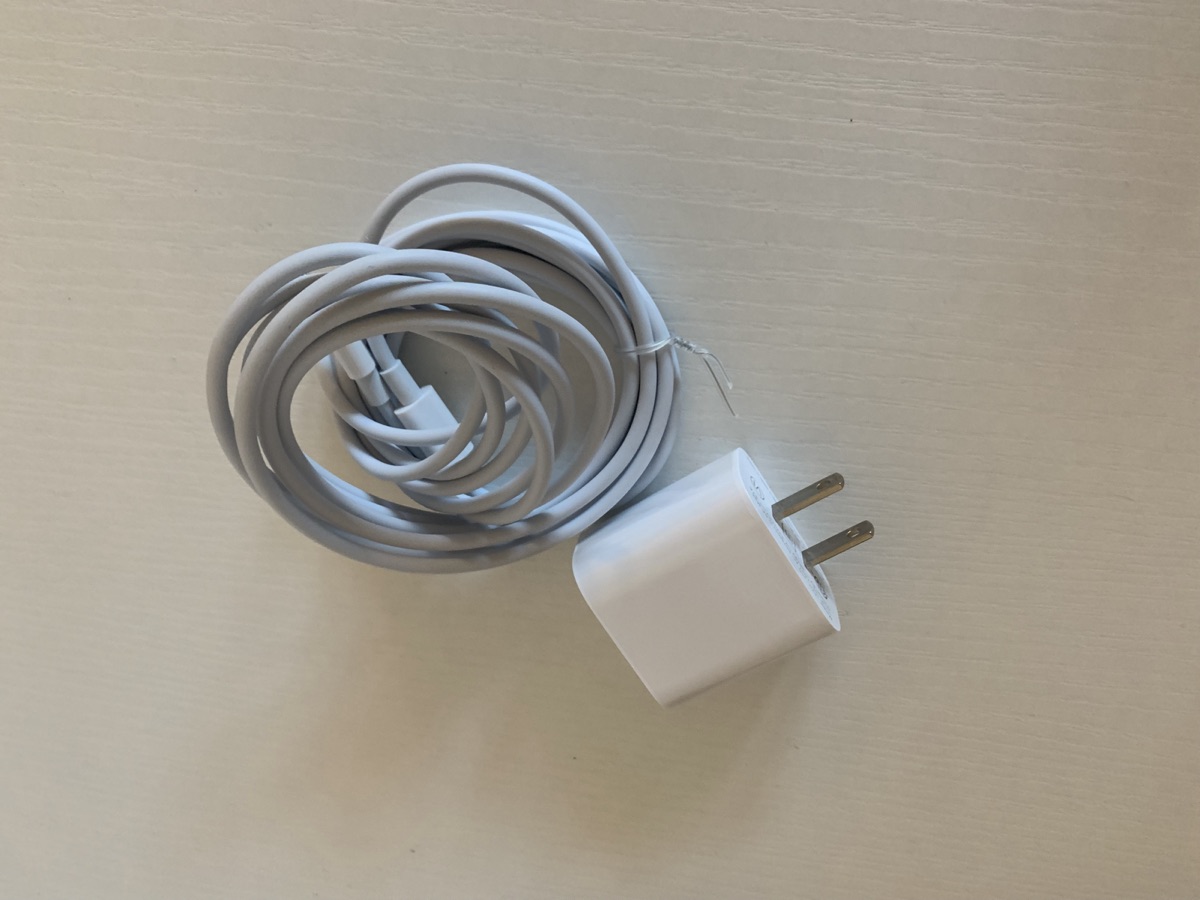
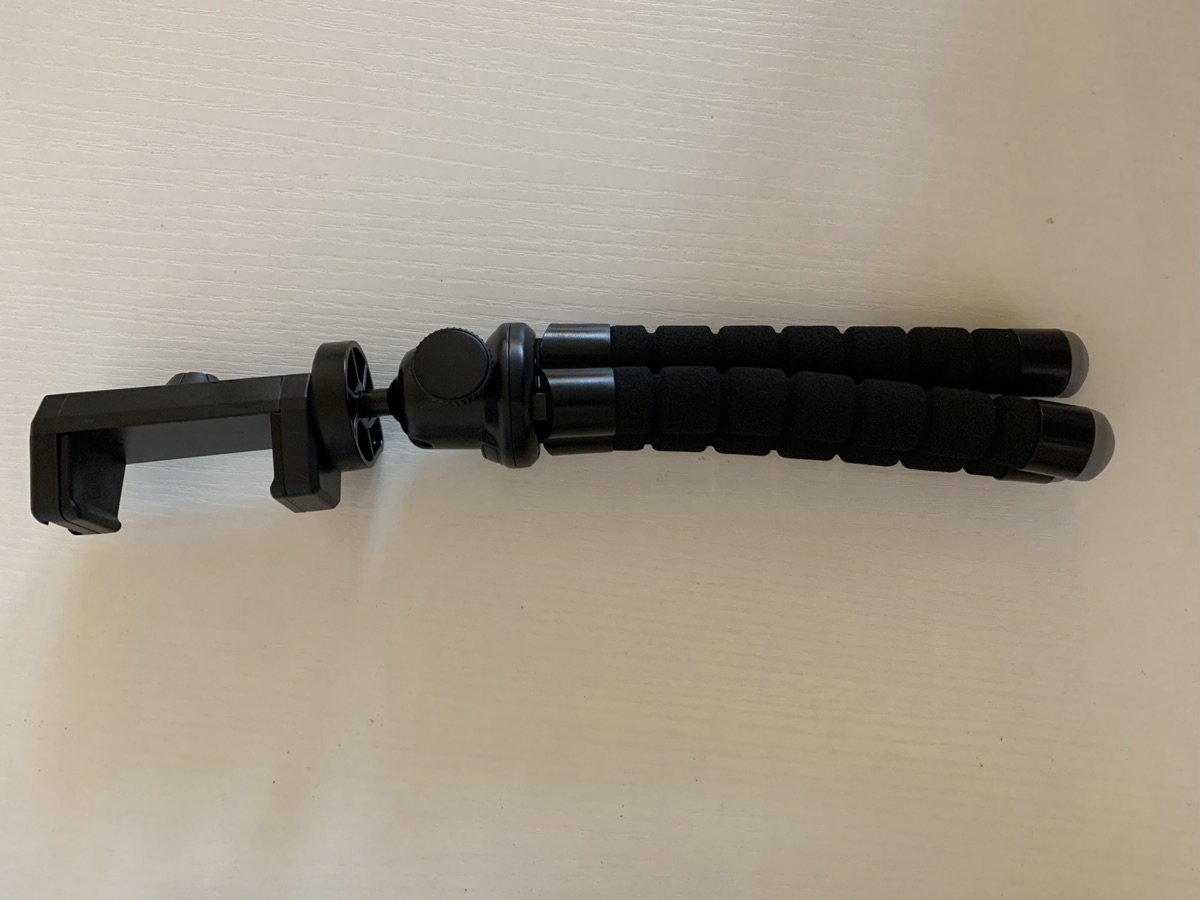
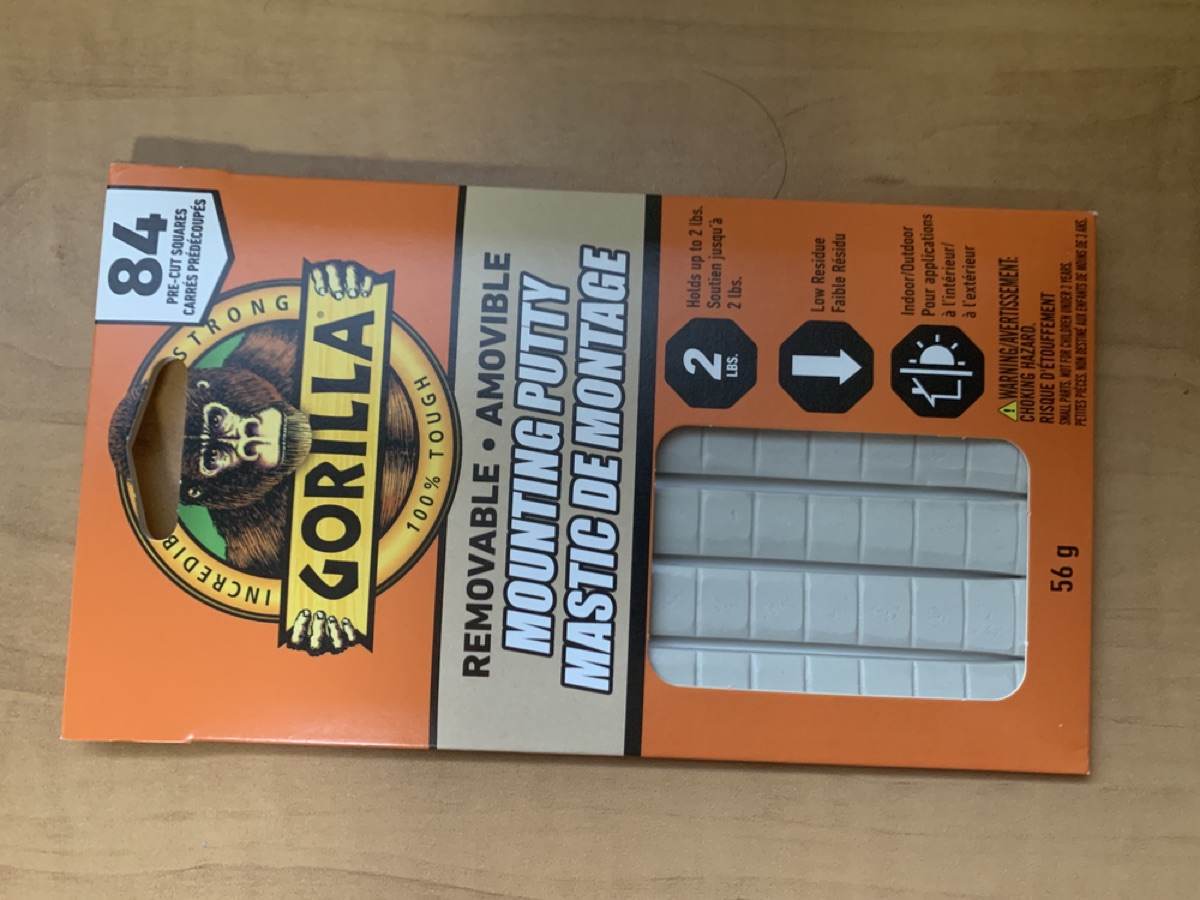
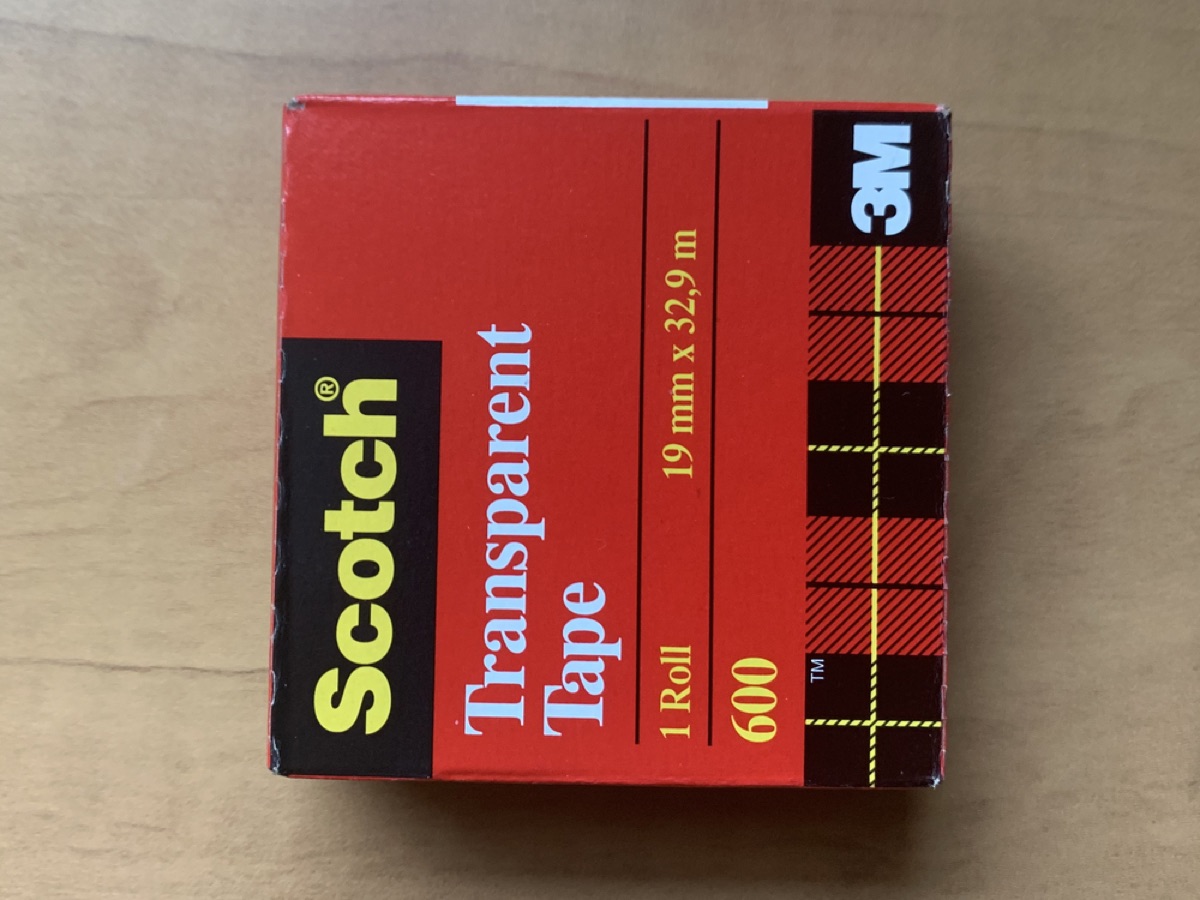
We include extra mounts and stands so you have options — you don't need to use them all. Pick a wall mount or a stand for each room, whatever fits the space.
On the phone we provide, open Settings → Wi-Fi, tap your home network, and enter the password. The Memoria Sensor needs Wi-Fi to work, so do this once before you set it up.
Use the wall mount
Best for a high corner looking down. Sticks on with reusable putty — no tools and no holes in the wall.
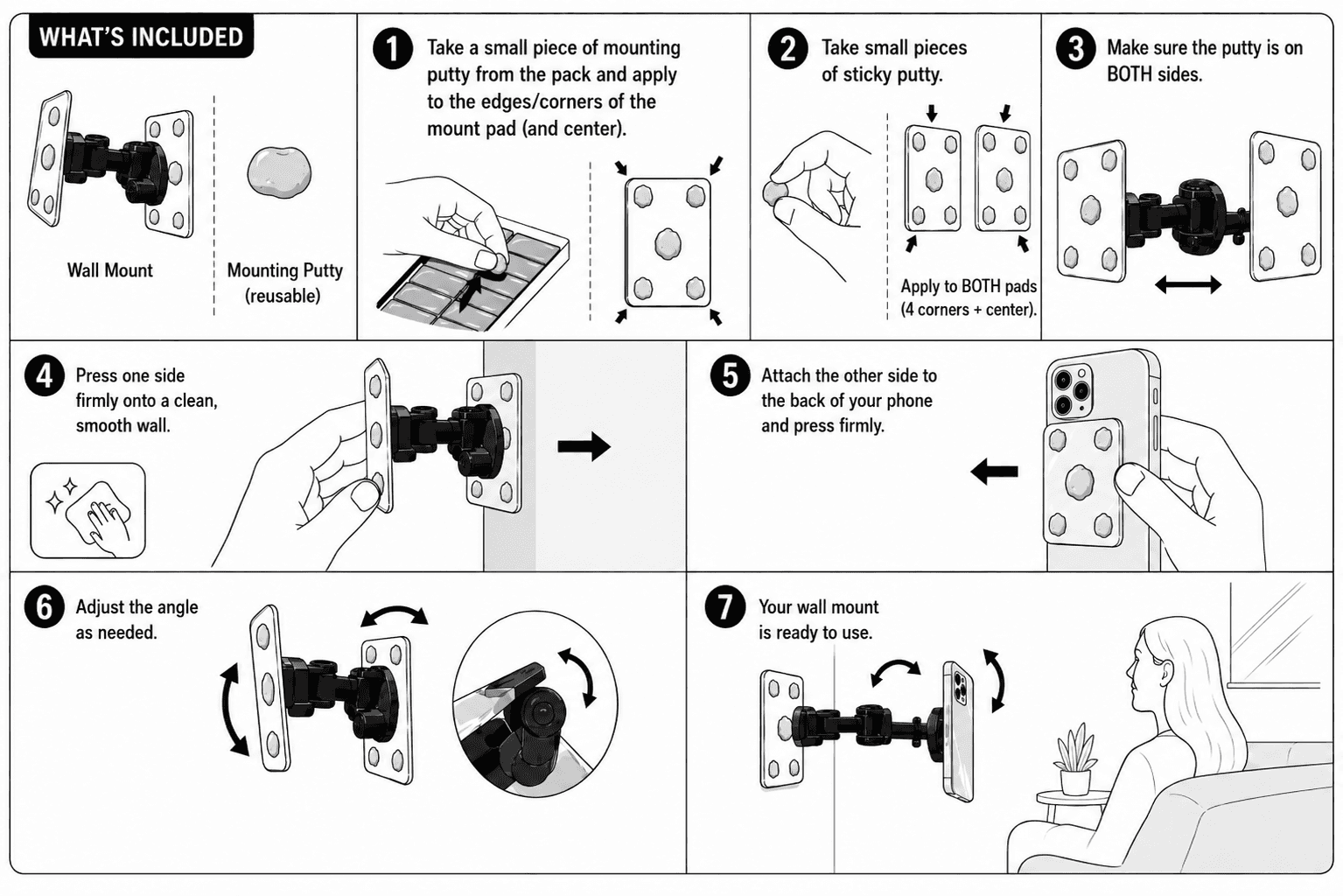
Use the phone stand
Best for a shelf, table, or windowsill. The bendy legs let you aim it right at the room.
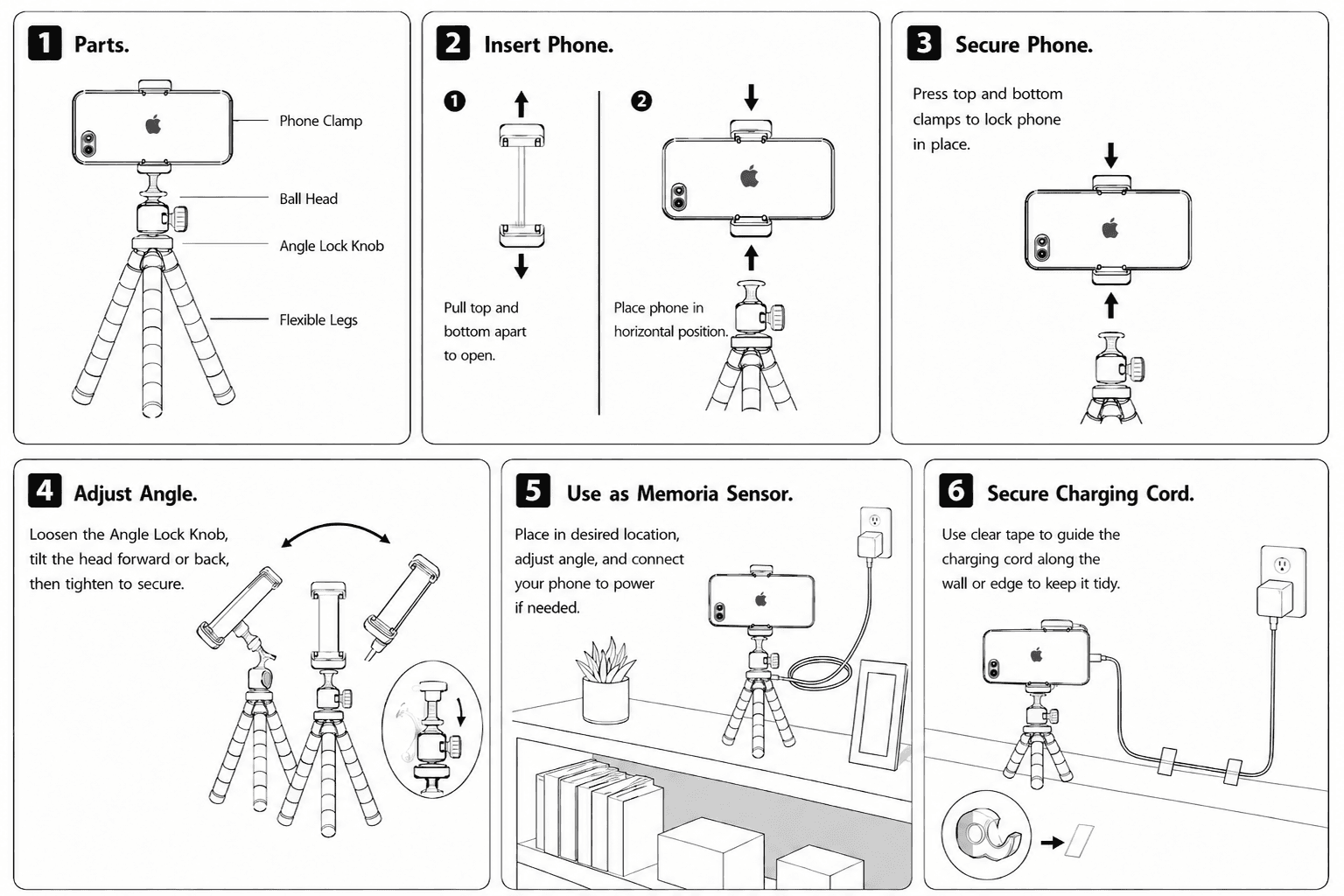
Plug in & start
A sensor needs to stay charged and online to keep watching.
- Plug the phone into the extended charger and a wall outlet
- Use the clear tape to run the charging cord neatly along the wall or edge
- Make sure it's connected to your home Wi-Fi
- Open Memoria Sensor and tap the green Start
Once the phone is mounted and running, head to the User Guide → Set up & pair the camera to connect it to the person you're caring for.